> ## Documentation Index
> Fetch the complete documentation index at: https://docs.stopbars.com/llms.txt
> Use this file to discover all available pages before exploring further.
# Overview
These contribution docs are a draft and still in progress. The V2 contribution system is not yet enabled, and contributions cannot be submitted at this time. This documentation is incomplete and may contain placeholder content or outdated information. All content is subject to change before the official release.
## What are Contributions?
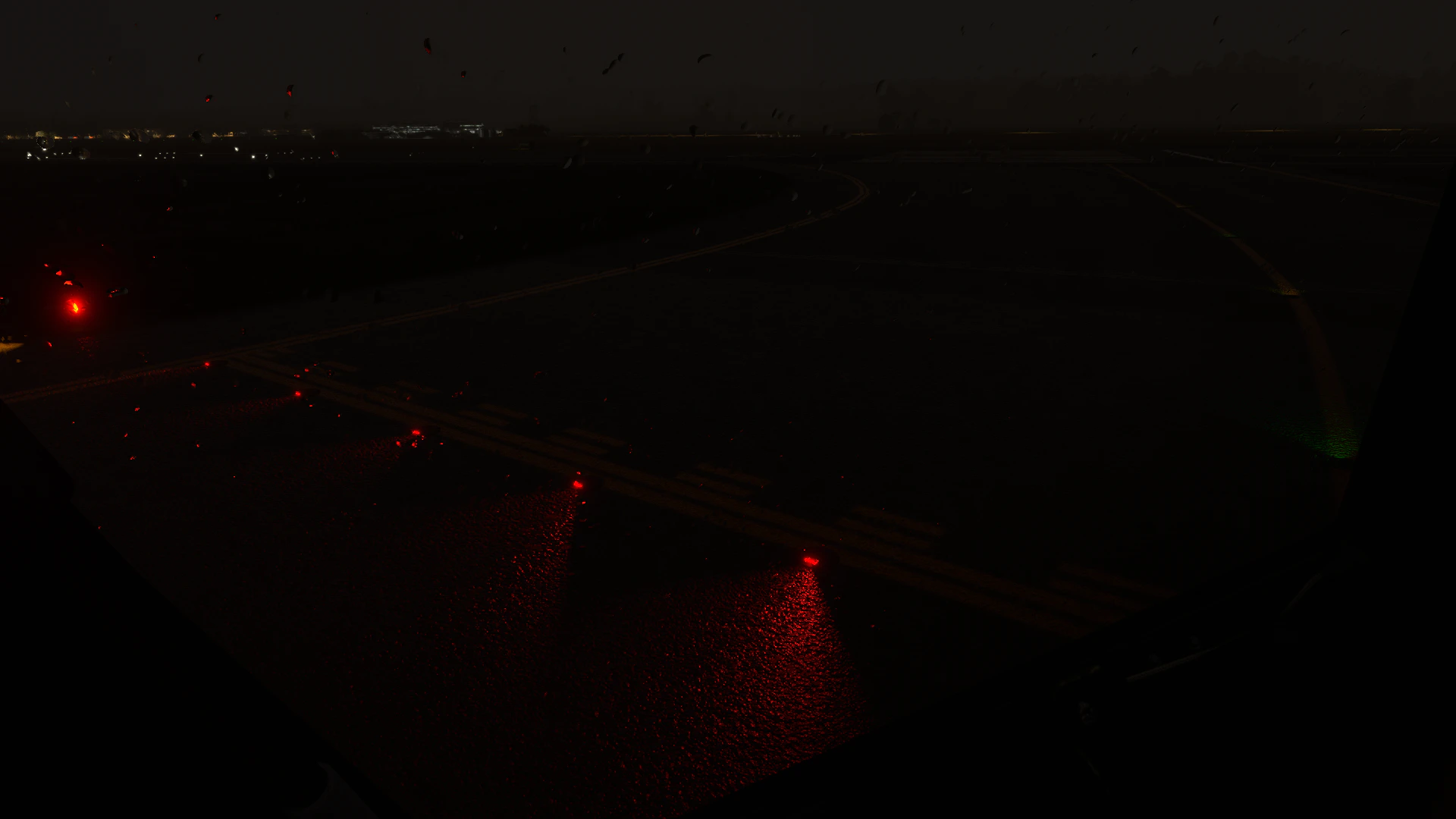
The **BARS Contribution System** allow anyone to help expand compatible airport support across the globe. By contributing scenery packages for specific airports, you directly increase the number of compatible airports available to pilots using BARS. Each contribution adds support for a specific simulator scenery package, enabling real-time airport lighting at that airport for pilots using that scenery.
Your contributions help:
* **Expand global airport coverage** - Add lighting support for airports worldwide
* **Support multiple scenery packages** - Increase compatibility with both default and third-party simulator scenery
 ## How It Works
The contribution process is straightforward. Divisions provide airport lighting data, including all metadata for each lighting object. Each object receives a unique `BARS_ID` that contains all relevant metadata. As a contributor, you create scenery polygons in your simulator and name them after these BARS IDs. The system then generates the correct lighting behaviour automatically - no manual lighting configuration required.
Enable developer mode in MSFS 2020/2024 and spawn at your desired airport.
Use the interactive airport map on the Contribution Dashboard to access BARS IDs, then create scenery polygons in your simulator, naming each polygon after the corresponding BARS ID.
Add removal areas to prevent duplicate lighting between default lights and BARS lights.
Export your scenery XML and upload it to the Contribution Tester for testing and visual preview.
Enter your scenery package details and submit. The BARS Team will review and approve your contribution, making it available to all.
## Get Started
The contribution process is simple to follow and open to anyone, get started today.
Set up your environment and prepare to make your first contribution.
Need support getting started? Join our Discord server for help.
## How It Works
The contribution process is straightforward. Divisions provide airport lighting data, including all metadata for each lighting object. Each object receives a unique `BARS_ID` that contains all relevant metadata. As a contributor, you create scenery polygons in your simulator and name them after these BARS IDs. The system then generates the correct lighting behaviour automatically - no manual lighting configuration required.
Enable developer mode in MSFS 2020/2024 and spawn at your desired airport.
Use the interactive airport map on the Contribution Dashboard to access BARS IDs, then create scenery polygons in your simulator, naming each polygon after the corresponding BARS ID.
Add removal areas to prevent duplicate lighting between default lights and BARS lights.
Export your scenery XML and upload it to the Contribution Tester for testing and visual preview.
Enter your scenery package details and submit. The BARS Team will review and approve your contribution, making it available to all.
## Get Started
The contribution process is simple to follow and open to anyone, get started today.
Set up your environment and prepare to make your first contribution.
Need support getting started? Join our Discord server for help.