> ## Documentation Index
> Fetch the complete documentation index at: https://docs.stopbars.com/llms.txt
> Use this file to discover all available pages before exploring further.
# Edit a contribution draft
> Correct object positions, assign BARS IDs, manage default-light removals, and prepare a draft for testing.
Use the full-screen editor to align the draft with your scenery. The object list, map, editing controls, scenery layers, and validation results remain visible while you work.
## Finish editor setup
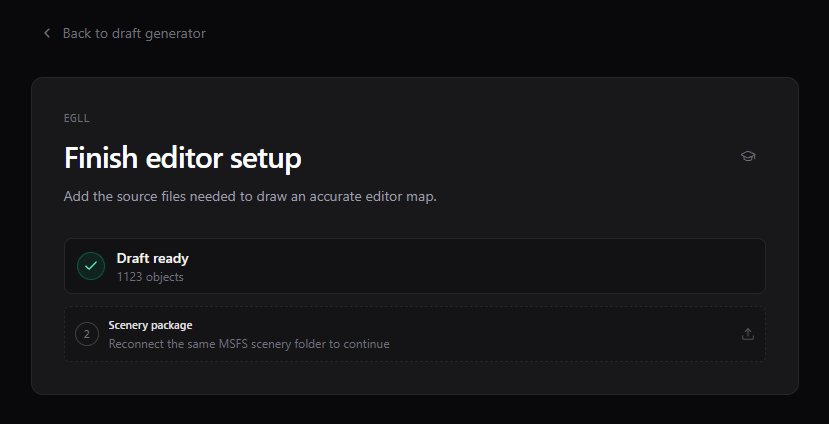
The editor may ask you to select the scenery package again after you refresh the page or reopen the draft.
Reconnect the same airport scenery package when prompted so the editor can display it again.
Add the airport scenery first. If texture definitions or source textures remain unresolved, add the relevant X-Plane folder under **Missing textures**.
The editor warns you if the selected scenery differs from the package used to create the draft. Recheck every object and removal before continuing.
 ## Understand the workspace
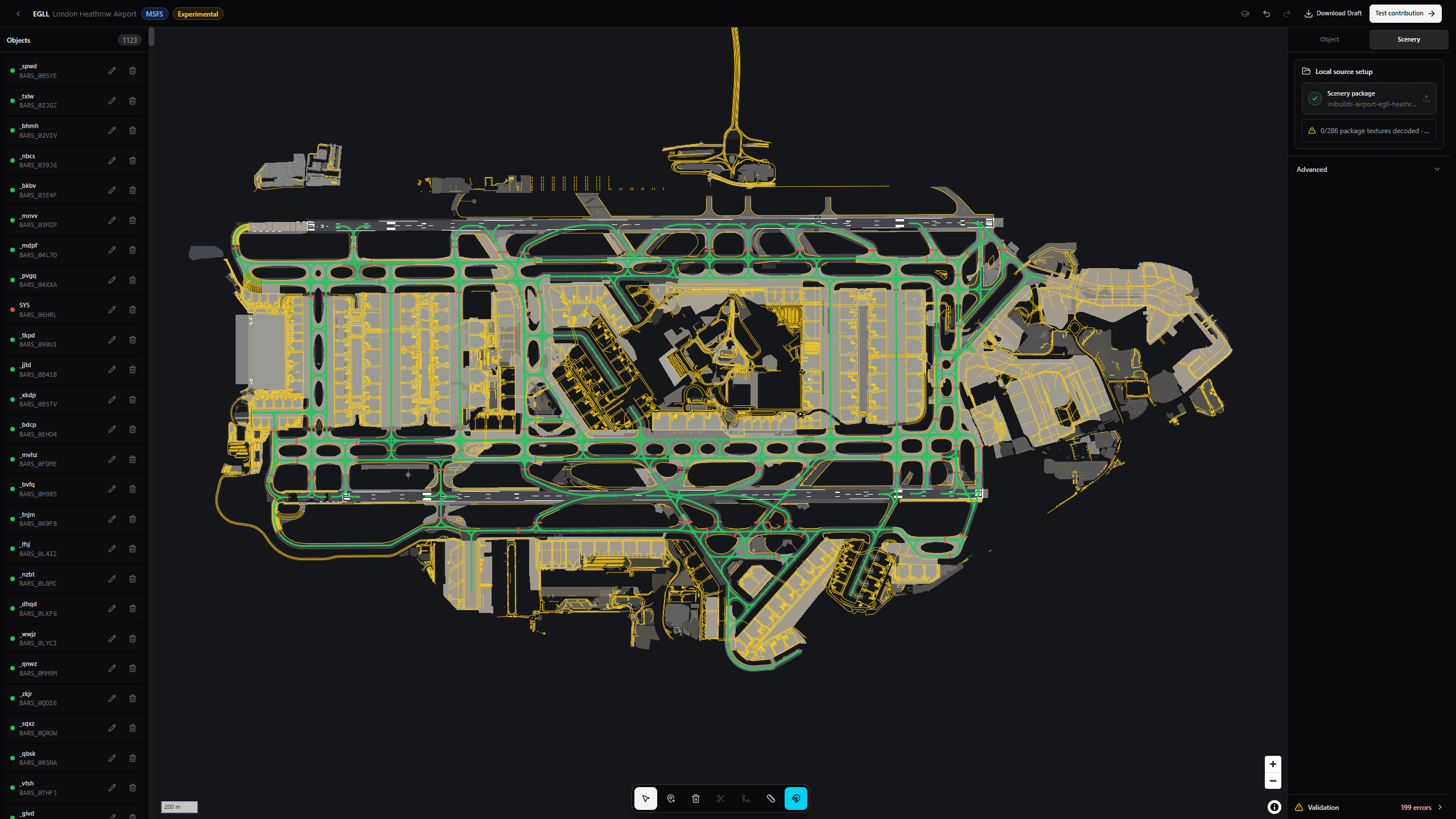 | Area | What it contains |
| ---------------- | ----------------------------------------------------------------------------------------------- |
| Top bar | Airport, simulator, MSFS experimental status, guide, undo, redo, download, and test actions. |
| Objects panel | Every draft object, its BARS ID, part count, validation state, quick edit, and delete controls. |
| Map | Draft geometry over the source scenery and selected reference layers. |
| Map toolbar | Edit, add, source-light removal, split, join, measurement, and snapping tools. |
| Object panel | The selected object's BARS ID, type, direction, issues, and delete action. |
| Scenery panel | Selected scenery, display layers, and unique colors. |
| Validation panel | Blocking errors and non-blocking warnings. |
## Top bar controls
| Control | What it does |
| ------------------ | ------------------------------------------------------- |
| Back | Returns to the draft generator. |
| Contribution guide | Opens these docs in a new tab. |
| Undo | Reverts the last editor change. |
| Redo | Restores the last reverted change. |
| Download Draft | Saves the current draft as XML. |
| Test contribution | Validates the draft, saves it, and opens the test step. |
The editor saves your progress in the current browser. Download a copy before switching browsers, clearing site data, or moving to another computer.
## Work with the object list
Select an object name to focus it on the map and open its details. The list also shows:
* A color marker for the object.
* Its BARS ID, or **BARS ID required** when one is missing.
* A part count when one BARS object uses multiple line sections.
* A warning icon when validation found a problem.
Use the pencil action for a compact BARS ID edit. Use the trash action to delete that line section.
Multiple line parts can share one BARS ID. They still represent one BARS object.
## Map tools
| Tool | Shortcut | How to use it |
| -------------------------- | -------- | ----------------------------------------------------------------------------------------------------------------- |
| Edit | `V` | Select an object, then move its editable points on the map. |
| Add object | `D` | Draw a new line with at least two points. The editor suggests a nearby unmatched BARS ID. |
| Edit source light removals | `R` | Select a start and end position on one scenery light row, then choose whether to remove or keep that section. |
| Split | `S` | Select an object, activate Split, then select a point on the line. The two resulting parts keep the same BARS ID. |
| Join | `J` | Select the first object, activate Join, then select the second. Their endpoints must be within 20 metres. |
| Measure distance | `M` | Select two map positions to create a measurement. Measurements stay on the map until cleared. |
| Snapping | | Turn source snapping on or off. Snapping is on by default. |
| Clear measurements | | Appears while the measurement tool has results. Removes every measurement. |
Press `Escape` to return to Edit, cancel an unfinished removal or measurement, and clear the current selection.
### Add or correct an object
Keep the source layer you want to follow visible. **Lights**, **Markings**, and **Pavement** are common alignment references.
Move the selected object's points, or use **Add object** to draw a missing line. Leave snapping on when the visible source is accurate.
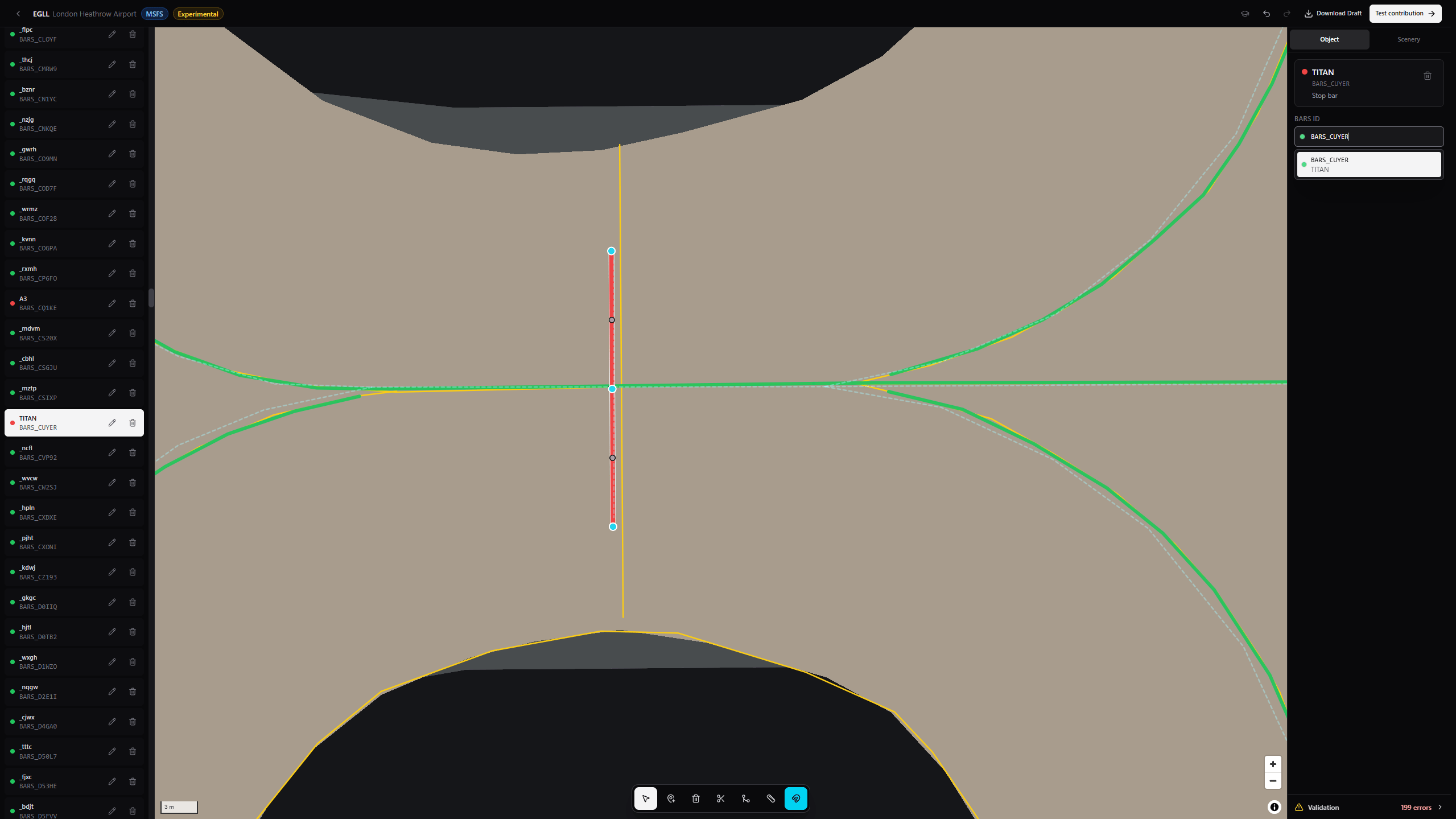
Use the BARS ID field in the Object panel. The suggestion list shows available division objects and supports arrow-key selection.
Select **Reverse direction** if the line runs opposite to the intended object direction.
Correct any issue attached to the object before moving on.
| Area | What it contains |
| ---------------- | ----------------------------------------------------------------------------------------------- |
| Top bar | Airport, simulator, MSFS experimental status, guide, undo, redo, download, and test actions. |
| Objects panel | Every draft object, its BARS ID, part count, validation state, quick edit, and delete controls. |
| Map | Draft geometry over the source scenery and selected reference layers. |
| Map toolbar | Edit, add, source-light removal, split, join, measurement, and snapping tools. |
| Object panel | The selected object's BARS ID, type, direction, issues, and delete action. |
| Scenery panel | Selected scenery, display layers, and unique colors. |
| Validation panel | Blocking errors and non-blocking warnings. |
## Top bar controls
| Control | What it does |
| ------------------ | ------------------------------------------------------- |
| Back | Returns to the draft generator. |
| Contribution guide | Opens these docs in a new tab. |
| Undo | Reverts the last editor change. |
| Redo | Restores the last reverted change. |
| Download Draft | Saves the current draft as XML. |
| Test contribution | Validates the draft, saves it, and opens the test step. |
The editor saves your progress in the current browser. Download a copy before switching browsers, clearing site data, or moving to another computer.
## Work with the object list
Select an object name to focus it on the map and open its details. The list also shows:
* A color marker for the object.
* Its BARS ID, or **BARS ID required** when one is missing.
* A part count when one BARS object uses multiple line sections.
* A warning icon when validation found a problem.
Use the pencil action for a compact BARS ID edit. Use the trash action to delete that line section.
Multiple line parts can share one BARS ID. They still represent one BARS object.
## Map tools
| Tool | Shortcut | How to use it |
| -------------------------- | -------- | ----------------------------------------------------------------------------------------------------------------- |
| Edit | `V` | Select an object, then move its editable points on the map. |
| Add object | `D` | Draw a new line with at least two points. The editor suggests a nearby unmatched BARS ID. |
| Edit source light removals | `R` | Select a start and end position on one scenery light row, then choose whether to remove or keep that section. |
| Split | `S` | Select an object, activate Split, then select a point on the line. The two resulting parts keep the same BARS ID. |
| Join | `J` | Select the first object, activate Join, then select the second. Their endpoints must be within 20 metres. |
| Measure distance | `M` | Select two map positions to create a measurement. Measurements stay on the map until cleared. |
| Snapping | | Turn source snapping on or off. Snapping is on by default. |
| Clear measurements | | Appears while the measurement tool has results. Removes every measurement. |
Press `Escape` to return to Edit, cancel an unfinished removal or measurement, and clear the current selection.
### Add or correct an object
Keep the source layer you want to follow visible. **Lights**, **Markings**, and **Pavement** are common alignment references.
Move the selected object's points, or use **Add object** to draw a missing line. Leave snapping on when the visible source is accurate.
Use the BARS ID field in the Object panel. The suggestion list shows available division objects and supports arrow-key selection.
Select **Reverse direction** if the line runs opposite to the intended object direction.
Correct any issue attached to the object before moving on.
 ## Edit source-light removals
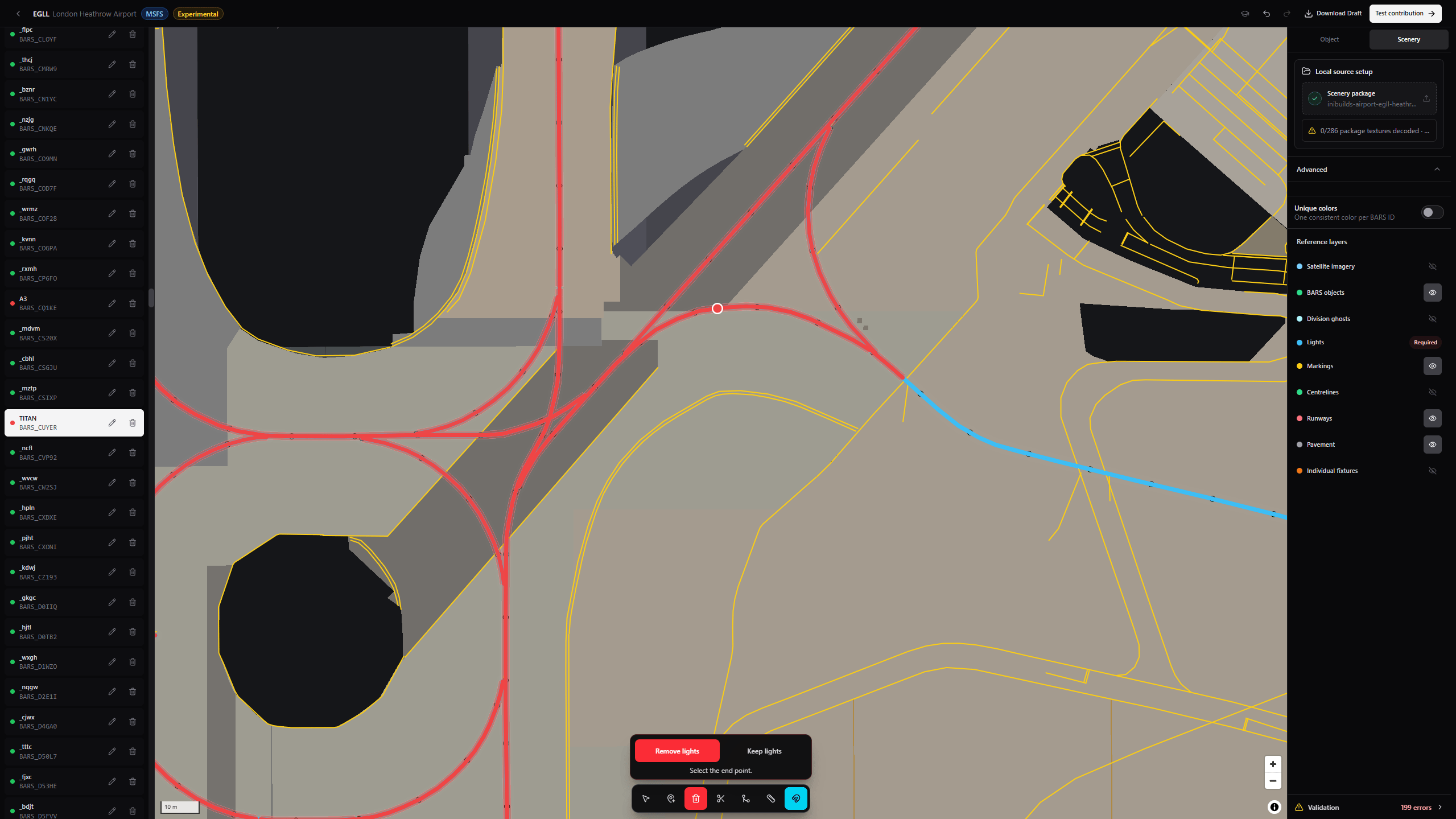
Source-light removals prevent default scenery lights from appearing beneath BARS-controlled lights. You edit a section of an existing scenery light row instead of drawing an area on the map.
Select the trash icon in the map toolbar or press `R`. The editor makes the required source-light layers visible.
Select **Remove lights** to hide the chosen section. Select **Keep lights** to erase an existing removal and preserve that section.
Select the start and end on the same scenery light row. The two positions must be at least one metre apart.
The editor updates the removal geometry. Use undo if the selected interval was wrong.
Reconnect the original scenery package before changing MSFS removals. The editor cannot change a light row when it cannot find that row in the selected package.
## Edit source-light removals
Source-light removals prevent default scenery lights from appearing beneath BARS-controlled lights. You edit a section of an existing scenery light row instead of drawing an area on the map.
Select the trash icon in the map toolbar or press `R`. The editor makes the required source-light layers visible.
Select **Remove lights** to hide the chosen section. Select **Keep lights** to erase an existing removal and preserve that section.
Select the start and end on the same scenery light row. The two positions must be at least one metre apart.
The editor updates the removal geometry. Use undo if the selected interval was wrong.
Reconnect the original scenery package before changing MSFS removals. The editor cannot change a light row when it cannot find that row in the selected package.
 ## Object panel
The **Object** tab appears on the right. Select an object to use these controls:
| Control | What it does |
| ----------------- | --------------------------------------------------------------------------------------- |
| BARS ID | Assigns the line to a division object. Suggestions prioritize nearby unmatched objects. |
| Reverse direction | Reverses the coordinate order without changing the visible line. |
| Delete object | Removes the selected line section. |
| Issue message | Shows the first validation issue for the selection. |
## Scenery panel and reference layers
The **Scenery** tab shows the selected package and whether it loaded correctly. You can replace the package or add missing X-Plane textures from this panel.
Open **Advanced** for display controls:
| Control | What it shows |
| ------------------- | -------------------------------------------------------------------- |
| Unique colors | One consistent color for every BARS ID, including multipart objects. |
| Satellite imagery | The satellite base layer, when available. |
| BARS objects | The draft geometry you are editing. |
| Division ghosts | Division objects that are still missing from the draft. |
| Lights | Source light rows and individual fixtures. |
| Markings | Painted center and hold lines. |
| Centrelines | Simulator taxi guidance. |
| Runways | Runway surfaces and centrelines. |
| Pavement | Exact surfaces and boundaries. |
| Individual fixtures | Placed lighting objects and anchors. |
Some source categories become **Required** while a tool depends on them and cannot be hidden until you leave that tool.
## Object panel
The **Object** tab appears on the right. Select an object to use these controls:
| Control | What it does |
| ----------------- | --------------------------------------------------------------------------------------- |
| BARS ID | Assigns the line to a division object. Suggestions prioritize nearby unmatched objects. |
| Reverse direction | Reverses the coordinate order without changing the visible line. |
| Delete object | Removes the selected line section. |
| Issue message | Shows the first validation issue for the selection. |
## Scenery panel and reference layers
The **Scenery** tab shows the selected package and whether it loaded correctly. You can replace the package or add missing X-Plane textures from this panel.
Open **Advanced** for display controls:
| Control | What it shows |
| ------------------- | -------------------------------------------------------------------- |
| Unique colors | One consistent color for every BARS ID, including multipart objects. |
| Satellite imagery | The satellite base layer, when available. |
| BARS objects | The draft geometry you are editing. |
| Division ghosts | Division objects that are still missing from the draft. |
| Lights | Source light rows and individual fixtures. |
| Markings | Painted center and hold lines. |
| Centrelines | Simulator taxi guidance. |
| Runways | Runway surfaces and centrelines. |
| Pavement | Exact surfaces and boundaries. |
| Individual fixtures | Placed lighting objects and anchors. |
Some source categories become **Required** while a tool depends on them and cannot be hidden until you leave that tool.
 ## Validation
The bottom of the right panel shows **Ready to test** when no issues remain. Otherwise, expand **Validation** to see the error and warning counts.
* Errors block **Test contribution**.
* Warnings identify work that needs review but do not always block testing.
* Selecting an issue focuses its object or the missing division object on the map.
Typical errors include a missing BARS ID, a conflicting duplicate object, an invalid line, or a division object that is still missing from the draft.
## Keyboard reference
| Key | Action |
| -------------------------- | --------------------------------------------- |
| `V` | Edit |
| `D` | Add object |
| `R` | Edit source-light removals |
| `S` | Split |
| `J` | Join |
| `M` | Measure distance |
| `Delete` | Delete the selected object |
| `Escape` | Cancel the current action and clear selection |
| `Ctrl+Z` | Undo |
| `Ctrl+Shift+Z` or `Ctrl+Y` | Redo |
Shortcuts do not run while you are typing in an input or notes field.
Prepare the draft, inspect the preview, and open it in the Pilot Client.
## Validation
The bottom of the right panel shows **Ready to test** when no issues remain. Otherwise, expand **Validation** to see the error and warning counts.
* Errors block **Test contribution**.
* Warnings identify work that needs review but do not always block testing.
* Selecting an issue focuses its object or the missing division object on the map.
Typical errors include a missing BARS ID, a conflicting duplicate object, an invalid line, or a division object that is still missing from the draft.
## Keyboard reference
| Key | Action |
| -------------------------- | --------------------------------------------- |
| `V` | Edit |
| `D` | Add object |
| `R` | Edit source-light removals |
| `S` | Split |
| `J` | Join |
| `M` | Measure distance |
| `Delete` | Delete the selected object |
| `Escape` | Cancel the current action and clear selection |
| `Ctrl+Z` | Undo |
| `Ctrl+Shift+Z` or `Ctrl+Y` | Redo |
Shortcuts do not run while you are typing in an input or notes field.
Prepare the draft, inspect the preview, and open it in the Pilot Client.