> ## Documentation Index
> Fetch the complete documentation index at: https://docs.stopbars.com/llms.txt
> Use this file to discover all available pages before exploring further.
# Configuration
## Configuring Your Airport Scenery Packages
With the plethora of scenery options available in simulators nowadays, pilots use a wide range of different scenery packages. Once the Pilot Client is [installed](/pilot-client/installation), you'll need to configure which scenery package you use for each supported airport.
### Finding Your Airport
Navigate to the **Airport List** section in the Pilot Client. You can search for airports by:
* **ICAO code** (e.g., `YPPH`)
* **Package name** (e.g., `FlyTampa`)
* **Airport name** (e.g., `East Midlands`)
### Selecting Your Scenery Package
Select your simulator on the right through the simulator filter. This is purely a filter to only show airports compatible with each sim.
Use the search function to locate your airport.
Click the dropdown menu next to the airport ICAO code.
Choose from the available scenery packages for that airport.
Your selection will update where lights are placed in your simulator.
If an airport does not appear in the list or a specific scenery package is missing, it may not have been contributed yet. You can help contribute to BARS by following the [scenery contribution guide](/contributions).
## Default Light Removal Package
### Understanding the Default Light Removal Package
The BARS Pilot Client includes a default light removal package that is installed by default. This package automatically removes defaultbaked scenery lights at all BARS supported airports to prevent duplicate lighting after BARS spawns its own dynamic lights.
#### Why This Package is Important
Without the default light removal package, you would see:
* Duplicate lights at BARS supported airports
* Conflicting lighting from both scenery and BARS lights
* Confusion when identifying which lights are controlled by BARS
* Unrealistic lighting effects and positions
**We strongly recommend keeping the default light removal package installed**. Disabling it will result in duplicate, conflicting lights at BARS supported airports and negatively impact your visual experience. Only disable this package if you have a specific technical reason to do so.
### Disabling the Default Light Removal Package (Not Recommended)
**While we do not recommend it**, if you still wish to disable the default light removal package, you can do so per airport:
Launch the **BARS Pilot Client** application.
Select your simulator on the right through the simulator filter. This is purely a filter to only show airports compatible with each sim.
Use the search function to locate your airport.
Toggle to turn removals on or off for that specific airport.
If your simulator is already open, you will need to restart it to update your removals preference. The Pilot Client will display an orange warning in the top right when a restart is required.
If you disable the default light removal package, you may experience duplicate lights at BARS supported airports where the baked scenery lights conflict with BARS lighting.
### Airport Lighting With ATC Offline
Even when ATC is offline, a controller is not using BARS, or you are not connected to VATSIM, simply having the BARS Pilot Client open will spawn airport lighting in a **"Default"** state. This ensures your scenery always has appropriate lighting, preventing you from flying in an unlit environment.
## System Tray and Window Management
### Minimize to System Tray
The Pilot Client can be minimized to your system tray for quick access while keeping your desktop clean. Click the **minimize button** in the top-right corner of the window to minimize the application to your system tray.
### System Tray Icon Settings
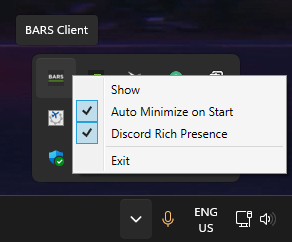
Right-click on the BARS Pilot Client icon in your system tray to access additional settings:
 #### Auto Minimize on Start
Enabling **Auto Minimize on Start** will automatically minimize the Pilot Client to your system tray.
We recommend enabling this setting after you've configured your scenery packages, so the application starts quietly in the background without taking up screen space.
#### Discord Rich Presence
By default, **Discord Rich Presence** is enabled to show your activity in the BARS Pilot Client on your Discord profile. When enabled, your Discord status will display:
* Your nearest airport (automatically detected from your simulator position)
* Your current server status (Connected, Disconnected, Error, or No VATSIM Connection)
* Your active connected flight simulator (MSFS 2020 or MSFS 2024) with a small icon indicator
#### Auto Minimize on Start
Enabling **Auto Minimize on Start** will automatically minimize the Pilot Client to your system tray.
We recommend enabling this setting after you've configured your scenery packages, so the application starts quietly in the background without taking up screen space.
#### Discord Rich Presence
By default, **Discord Rich Presence** is enabled to show your activity in the BARS Pilot Client on your Discord profile. When enabled, your Discord status will display:
* Your nearest airport (automatically detected from your simulator position)
* Your current server status (Connected, Disconnected, Error, or No VATSIM Connection)
* Your active connected flight simulator (MSFS 2020 or MSFS 2024) with a small icon indicator
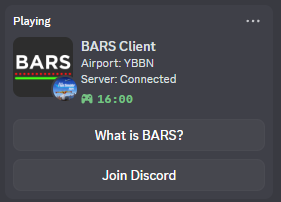 If you wish to disable Discord Rich Presence, simply uncheck it in the system tray settings.
## Auto-Start Configuration
### Starting Pilot Client with the Flight Simulator
The BARS Pilot Client is configured to **automatically launch when you start your flight simulator by default**. This ensures BARS lights are active whenever you fly without requiring manual startup.
If you need to disable auto-start or re-enable it, you can modify this setting at any time:
Launch the **BARS Installer** application.
Go to the **Settings** page.
Toggle the **"Start Pilot Client automatically with Microsoft Flight Simulator"** option as desired.
Auto Start combined with the **[Auto Minimize on Start](/pilot-client/config#auto-minimize-on-start)** setting, enables the Pilot Client to quietly launch in the background whenever you start your simulator, keeping your desktop clean while ensuring BARS lights are active, ready for use without manual starting.
If you wish to disable Discord Rich Presence, simply uncheck it in the system tray settings.
## Auto-Start Configuration
### Starting Pilot Client with the Flight Simulator
The BARS Pilot Client is configured to **automatically launch when you start your flight simulator by default**. This ensures BARS lights are active whenever you fly without requiring manual startup.
If you need to disable auto-start or re-enable it, you can modify this setting at any time:
Launch the **BARS Installer** application.
Go to the **Settings** page.
Toggle the **"Start Pilot Client automatically with Microsoft Flight Simulator"** option as desired.
Auto Start combined with the **[Auto Minimize on Start](/pilot-client/config#auto-minimize-on-start)** setting, enables the Pilot Client to quietly launch in the background whenever you start your simulator, keeping your desktop clean while ensuring BARS lights are active, ready for use without manual starting.