> ## Documentation Index
> Fetch the complete documentation index at: https://docs.stopbars.com/llms.txt
> Use this file to discover all available pages before exploring further.
# Installation
This quickstart guide shows you how to install and setup the BARS Pilot Client in minutes.
After completing this guide, you will have successfully installed the client, and are ready to see the BARS Pilot Client in action.
**Prerequisites**:
Before you begin, you must have the following:
1. BARS Account
2. BARS Installer
3. Microsoft Flight Simulator 2020 or 2024
Launch the **BARS Installer**, choose and install the **Pilot Client**.
After installation, click **Open** in the installer to launch the Pilot Client for the first time.
Open the Pilot Client and paste your API token from the [account page](https://preview.stopbars.com/account) and click **Save**.
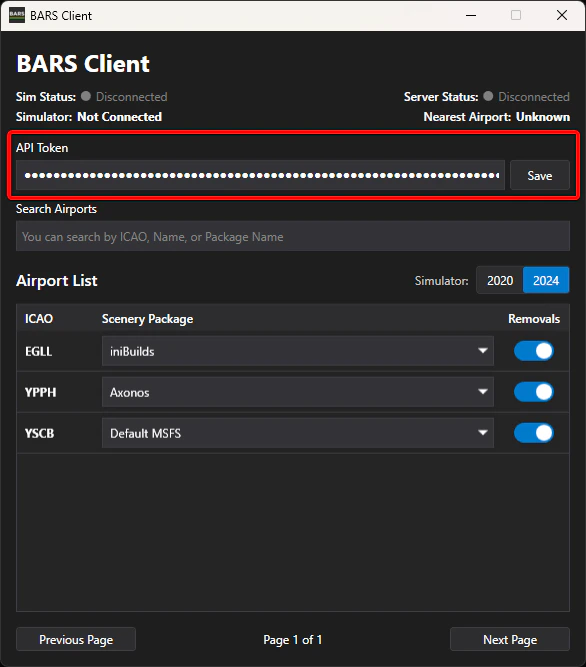 Keep this token secret, never share it with anyone. It is used to authenticate API requests.
## Next Steps
You've successfully installed the BARS Pilot Client! Now it's time to configure the client.
Configure your scenery packages, and customize your client preferences.
Keep this token secret, never share it with anyone. It is used to authenticate API requests.
## Next Steps
You've successfully installed the BARS Pilot Client! Now it's time to configure the client.
Configure your scenery packages, and customize your client preferences.