> ## Documentation Index
> Fetch the complete documentation index at: https://docs.stopbars.com/llms.txt
> Use this file to discover all available pages before exploring further.
# Tools
## Debug Mode
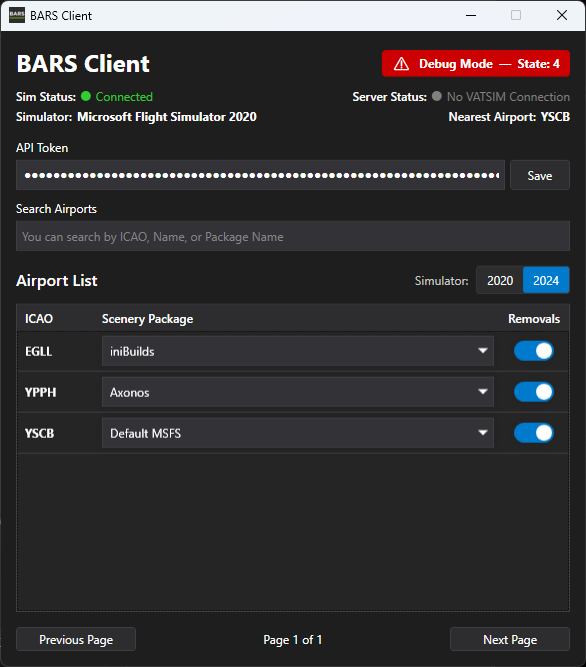
The Pilot Client includes a **Debug Mode** feature that allows you to verify your light models and states are working correctly without needing to connect.
When activated, Debug Mode freezes the current state and automatically cycles through all possible light states at the nearest holding point. This helps you confirm that:
* All light models have been successfully installed
* Lights are displaying and functioning correctly in your simulator
### Activating Debug Mode
To use Debug Mode, press `Ctrl + Shift + D` while the **Pilot Client window is selected**. To disable Debug Mode, simply press the same keybind again.
Before using Debug Mode, ensure that:
* You are spawned at an airport [supported](https://preview.stopbars.com/status) by BARS
* Light models have fully loaded (wait a few seconds after spawning)
If these conditions are not met, you won't see the closest light objects changing when Debug Mode is activated, as it freezes the current state.
When Debug Mode is active, a **red warning** will display in the top-right corner of the Pilot Client. This warning also shows the **current light state** being displayed in the simulator as it cycles through each state.
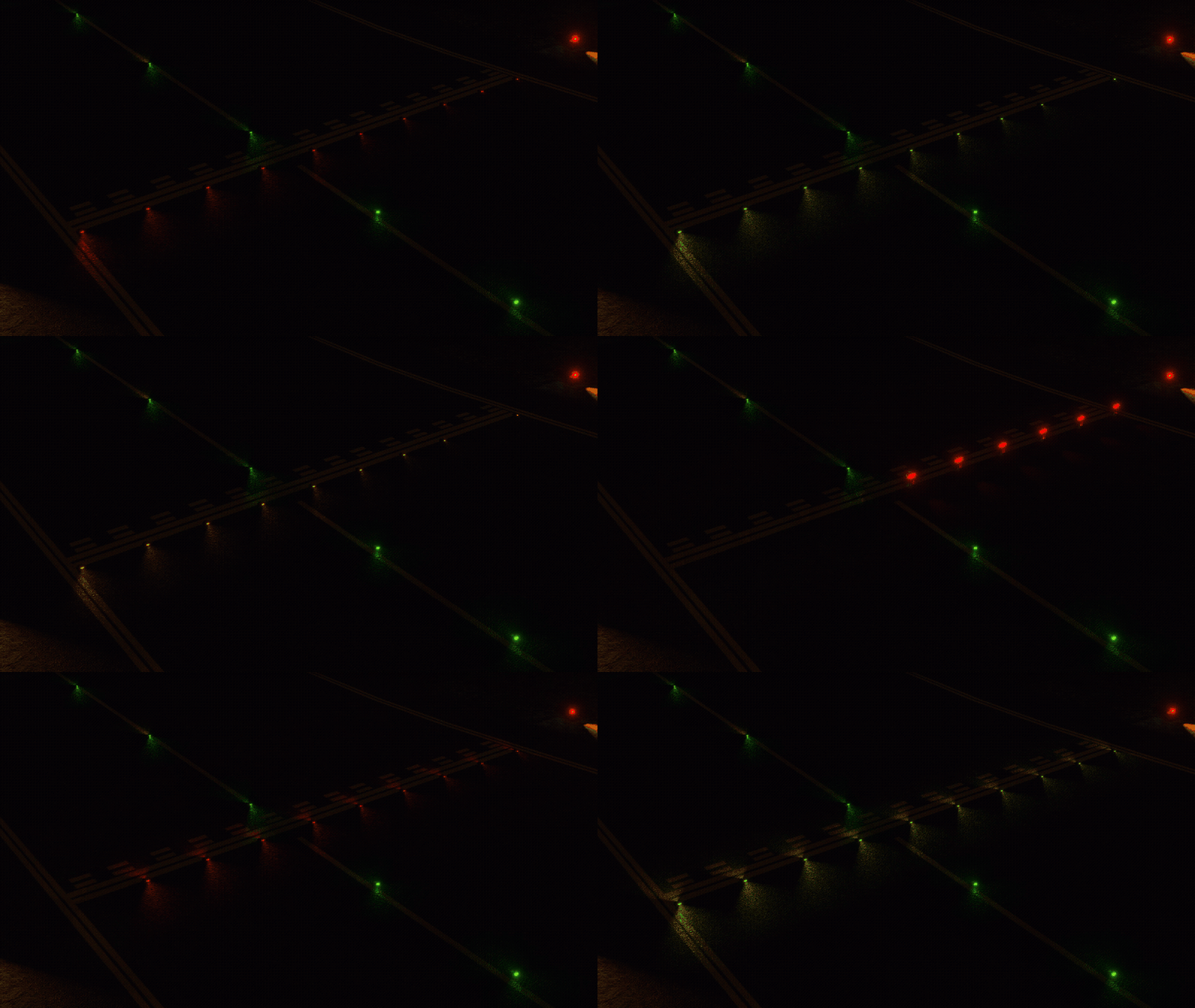
 The closest light model will automatically toggle through all possible lighting states in your simulator:
 Debug Mode will **not** activate if your simulator window is focused instead of the Pilot Client. Pressing `Ctrl + Shift + D` in the simulator will trigger any action bound to that keybind within the simulator itself, rather than activating Debug Mode inside the Pilot Client.
## Testing Mode
The Pilot Client includes a **Testing Mode** feature that allows you to load and preview your contribution XML directly in your simulator before submitting it. This lets you verify the positions of your lights in sim.
When Testing Mode is active, the Pilot Client disconnects from the network and loads your contribution data locally, setting all light states to true so every light in your submission is visible at once.
### Using Testing Mode
Testing Mode is initiated from the Test page of the Contribution flow, not from the Pilot Client.
Navigate to the **Test** page of the Contribution flow, upload your XML file, and click the **Test XML** button. Once your XML has been processed, a **Test in Client** button will appear.
Debug Mode will **not** activate if your simulator window is focused instead of the Pilot Client. Pressing `Ctrl + Shift + D` in the simulator will trigger any action bound to that keybind within the simulator itself, rather than activating Debug Mode inside the Pilot Client.
## Testing Mode
The Pilot Client includes a **Testing Mode** feature that allows you to load and preview your contribution XML directly in your simulator before submitting it. This lets you verify the positions of your lights in sim.
When Testing Mode is active, the Pilot Client disconnects from the network and loads your contribution data locally, setting all light states to true so every light in your submission is visible at once.
### Using Testing Mode
Testing Mode is initiated from the Test page of the Contribution flow, not from the Pilot Client.
Navigate to the **Test** page of the Contribution flow, upload your XML file, and click the **Test XML** button. Once your XML has been processed, a **Test in Client** button will appear.
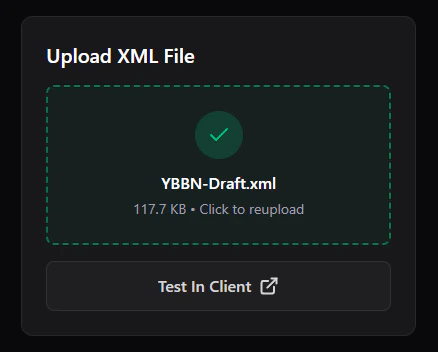 Click the **Test in Client** button to open your contribution in the Pilot Client's Testing Mode.
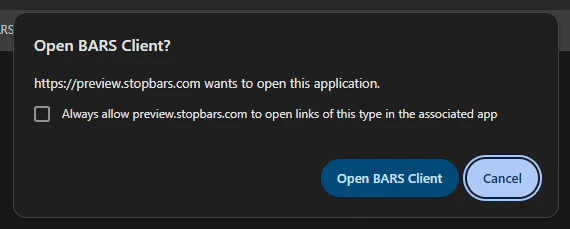
If this is your first time, your browser may prompt you to allow the website to open the BARS Client, click **Open BARS Client** to proceed. It is recommended you select the option to always allow this, so you are not prompted again in future testing sessions.
Click the **Test in Client** button to open your contribution in the Pilot Client's Testing Mode.
If this is your first time, your browser may prompt you to allow the website to open the BARS Client, click **Open BARS Client** to proceed. It is recommended you select the option to always allow this, so you are not prompted again in future testing sessions.
 You must have the Pilot Client installed through the **BARS Installer** for the Client to open correctly. If the Pilot Client is not installed, the browser prompt will appear but nothing will open.
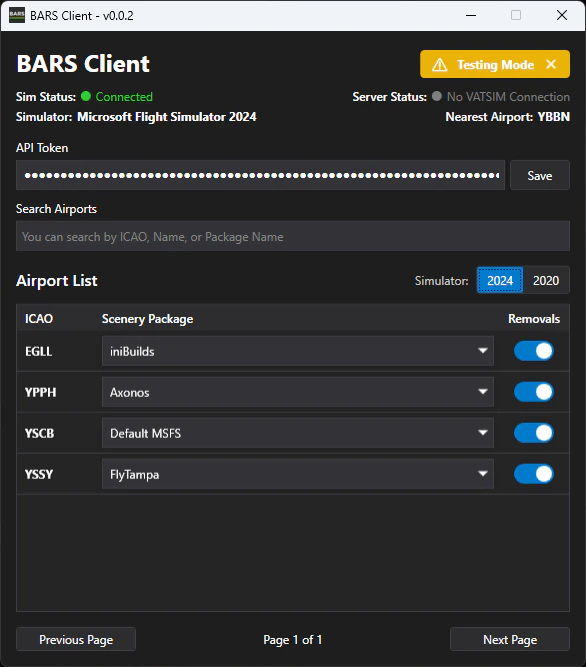
Once the Pilot Client opens, it will display a **Testing Mode** indicator in the top-right corner confirming Testing Mode is active with your contribution loaded.
You must have the Pilot Client installed through the **BARS Installer** for the Client to open correctly. If the Pilot Client is not installed, the browser prompt will appear but nothing will open.
Once the Pilot Client opens, it will display a **Testing Mode** indicator in the top-right corner confirming Testing Mode is active with your contribution loaded.
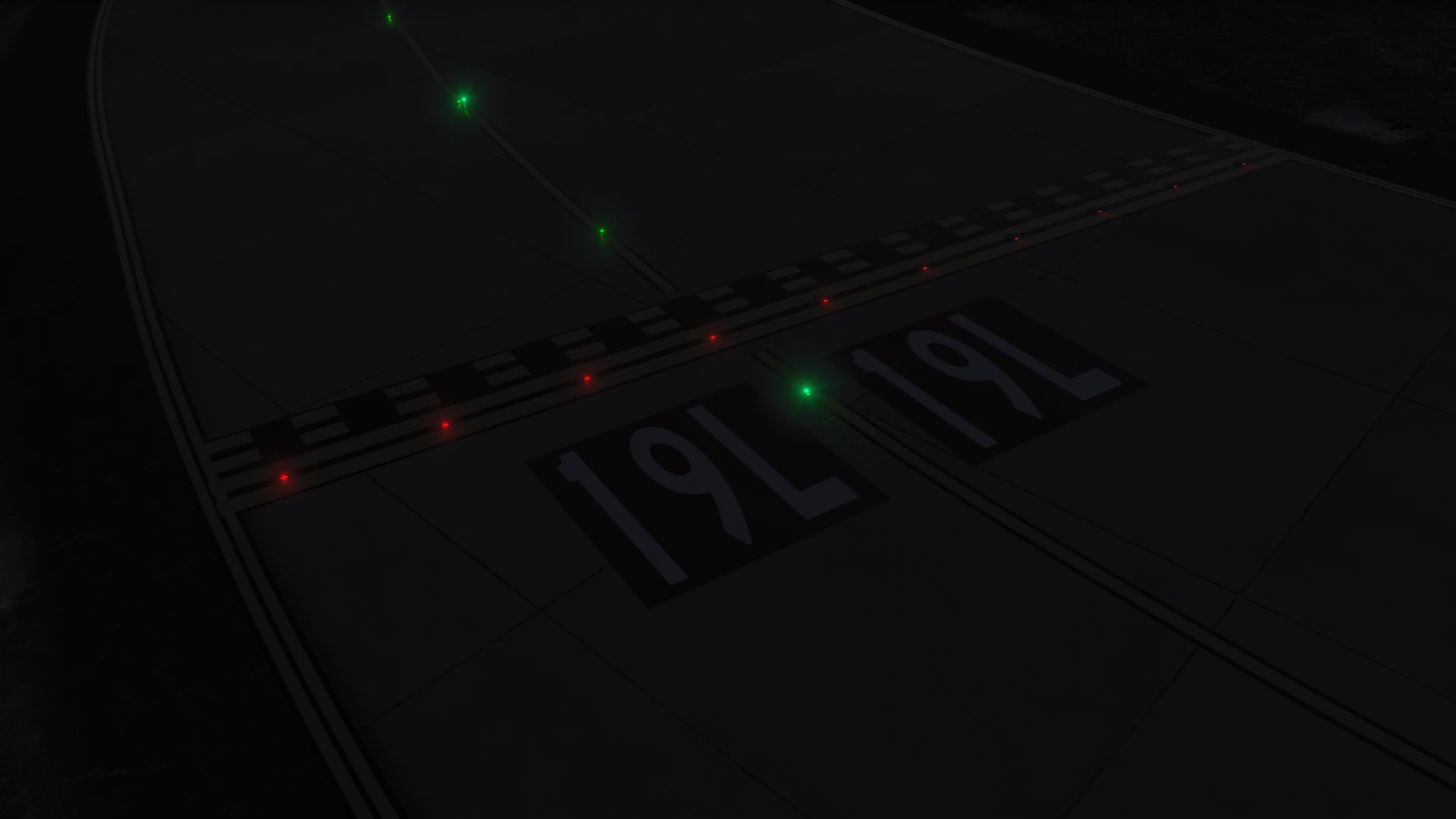
 With Testing Mode active, your contribution XML is loaded locally into your simulator. All light states are set to true, so every mapped light in your submission will be visible simultaneously, allowing you to verify their positions.
Your aircraft must be in close proximity to the lights for them to load in your simulator. Lights only load near your aircraft to keep simulator performance smooth, this prevents your simulator from loading in airport lights across the entire airport at once.
With Testing Mode active, your contribution XML is loaded locally into your simulator. All light states are set to true, so every mapped light in your submission will be visible simultaneously, allowing you to verify their positions.
Your aircraft must be in close proximity to the lights for them to load in your simulator. Lights only load near your aircraft to keep simulator performance smooth, this prevents your simulator from loading in airport lights across the entire airport at once.
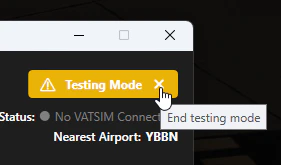
 When you are done, click the **X** icon on the **Testing Mode** button in the Pilot Client UI to exit Testing Mode. This will stop the test session and return the client to normal network operations.
 Testing Mode only works if your simulator is already open and you are loaded into the airport you wish to test. If you trigger Testing Mode before your simulator is open or before you have spawned at the correct airport, the lights will not load. You must **exit Testing Mode first**, then open your simulator, spawn at the correct airport, and trigger Testing Mode again from the website.
### What Testing Mode Does
When Testing Mode is active:
* The Pilot Client **disconnects from the network**
* Your contribution XML is loaded locally into the simulator
* **All light states are set to true**, making every mapped light visible simultaneously
* A **Testing Mode** indicator will display in the Pilot Client confirming Testing Mode is active
Testing Mode only affects your local simulator session. No contribution is submitted or published by activating Testing Mode, it is purely for local in simulator testing before you submit your contribution.
Testing Mode only works if your simulator is already open and you are loaded into the airport you wish to test. If you trigger Testing Mode before your simulator is open or before you have spawned at the correct airport, the lights will not load. You must **exit Testing Mode first**, then open your simulator, spawn at the correct airport, and trigger Testing Mode again from the website.
### What Testing Mode Does
When Testing Mode is active:
* The Pilot Client **disconnects from the network**
* Your contribution XML is loaded locally into the simulator
* **All light states are set to true**, making every mapped light visible simultaneously
* A **Testing Mode** indicator will display in the Pilot Client confirming Testing Mode is active
Testing Mode only affects your local simulator session. No contribution is submitted or published by activating Testing Mode, it is purely for local in simulator testing before you submit your contribution.