> ## Documentation Index
> Fetch the complete documentation index at: https://docs.stopbars.com/llms.txt
> Use this file to discover all available pages before exploring further.
# Configuration
After [installing the plugin](/vatsys/installation), the first step is to add your API token from the [account page](https://preview.stopbars.com/account). This authenticates your requests and is required before you can proceed to any other configuration.
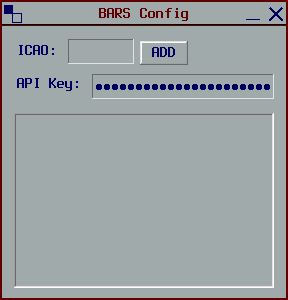 Keep this token secret, never share it with anyone. It is used to authenticate API requests.
Once your API token is saved, you can add airports to manage. Enter the airport's ICAO code in the input field and click **Add**.
You can add multiple airports to manage them all from the Config window, particularly useful when providing topdown coverage to multiple airports.
When you click **Add**, the appropriate window will automatically open based off your added airport's profile type.
### INTAS Airports
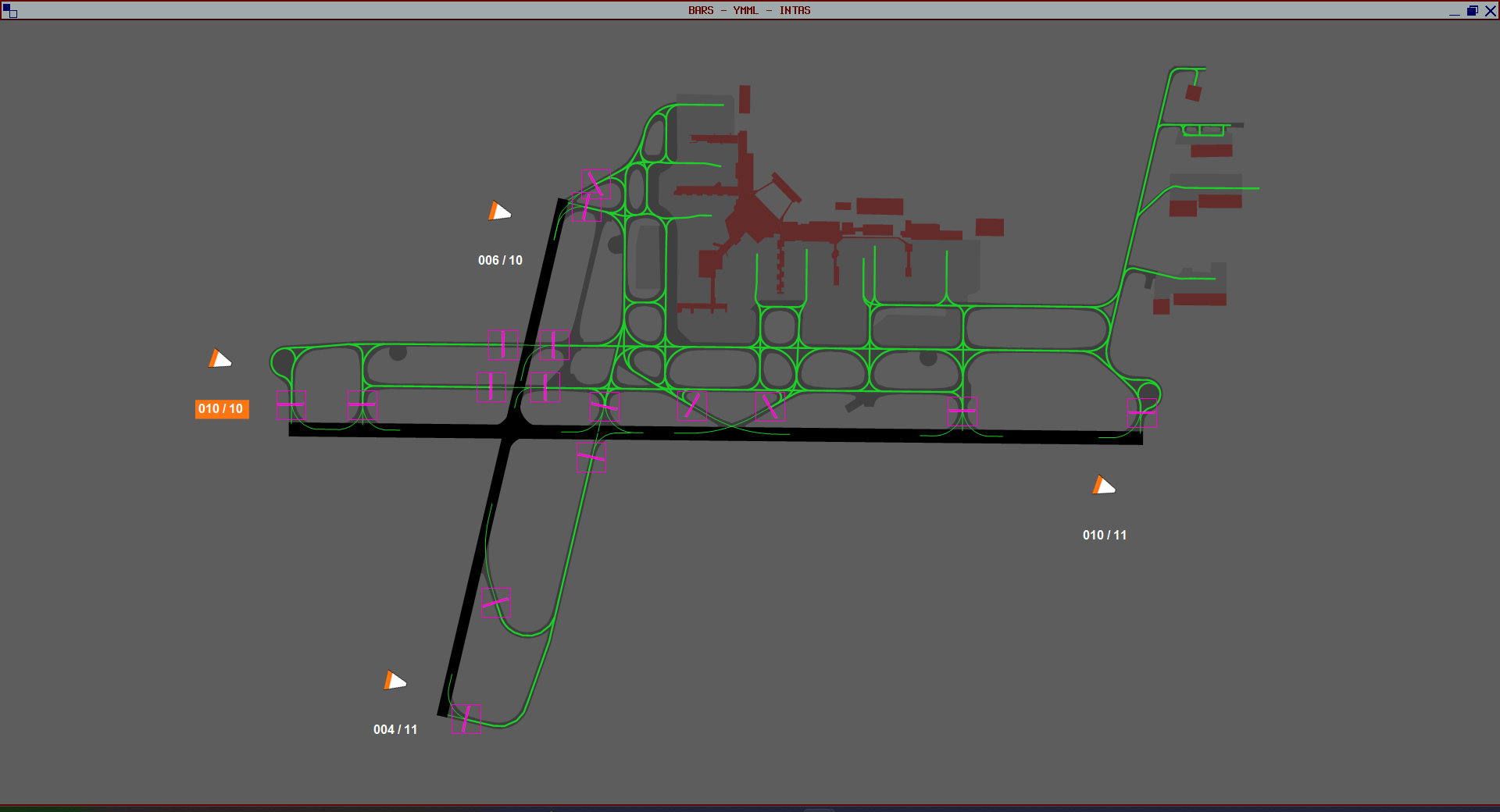
After clicking **Add**, the airport lighting window opens immediately, ready for you to manage lighting configurations. No additional setup is required.
Keep this token secret, never share it with anyone. It is used to authenticate API requests.
Once your API token is saved, you can add airports to manage. Enter the airport's ICAO code in the input field and click **Add**.
You can add multiple airports to manage them all from the Config window, particularly useful when providing topdown coverage to multiple airports.
When you click **Add**, the appropriate window will automatically open based off your added airport's profile type.
### INTAS Airports
After clicking **Add**, the airport lighting window opens immediately, ready for you to manage lighting configurations. No additional setup is required.
 ### Legacy Airports
Legacy airports require a runway selection process before you can begin managing lighting.
Enter the airport ICAO code and click **Add**:
### Legacy Airports
Legacy airports require a runway selection process before you can begin managing lighting.
Enter the airport ICAO code and click **Add**:
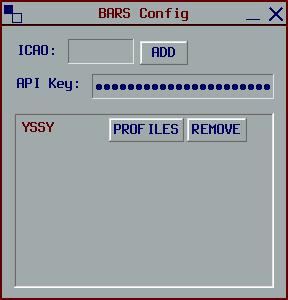
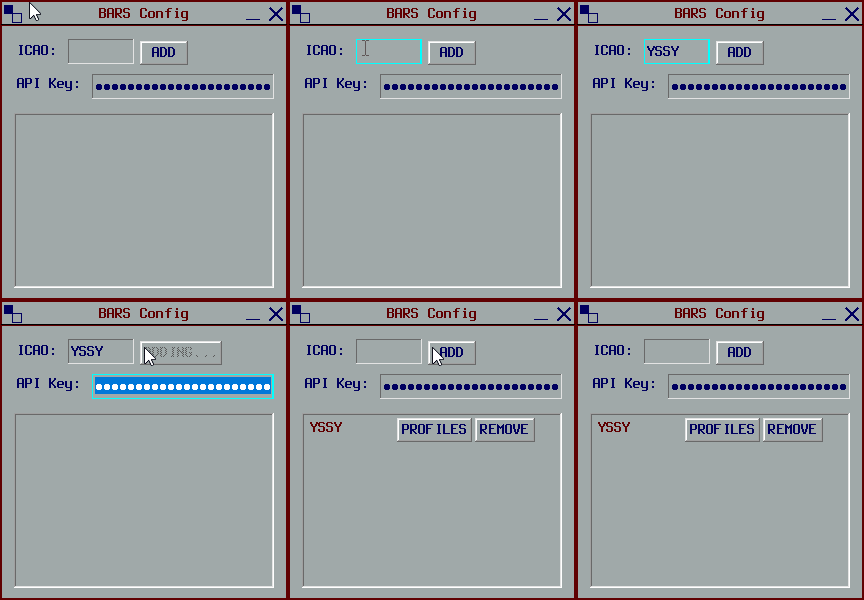 The airport will then auto populate within the Config window.
The Runway Profiles window will automatically open for your added airport:
The airport will then auto populate within the Config window.
The Runway Profiles window will automatically open for your added airport:
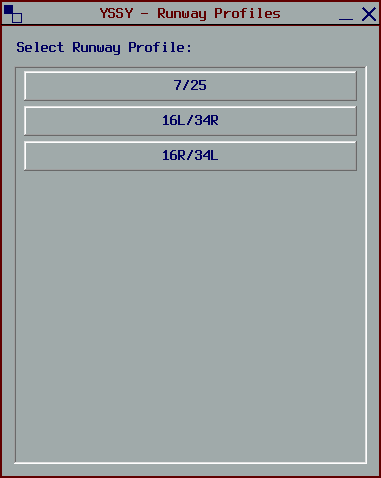 If it doesn't open, manually access it by clicking **"PROFILES"**
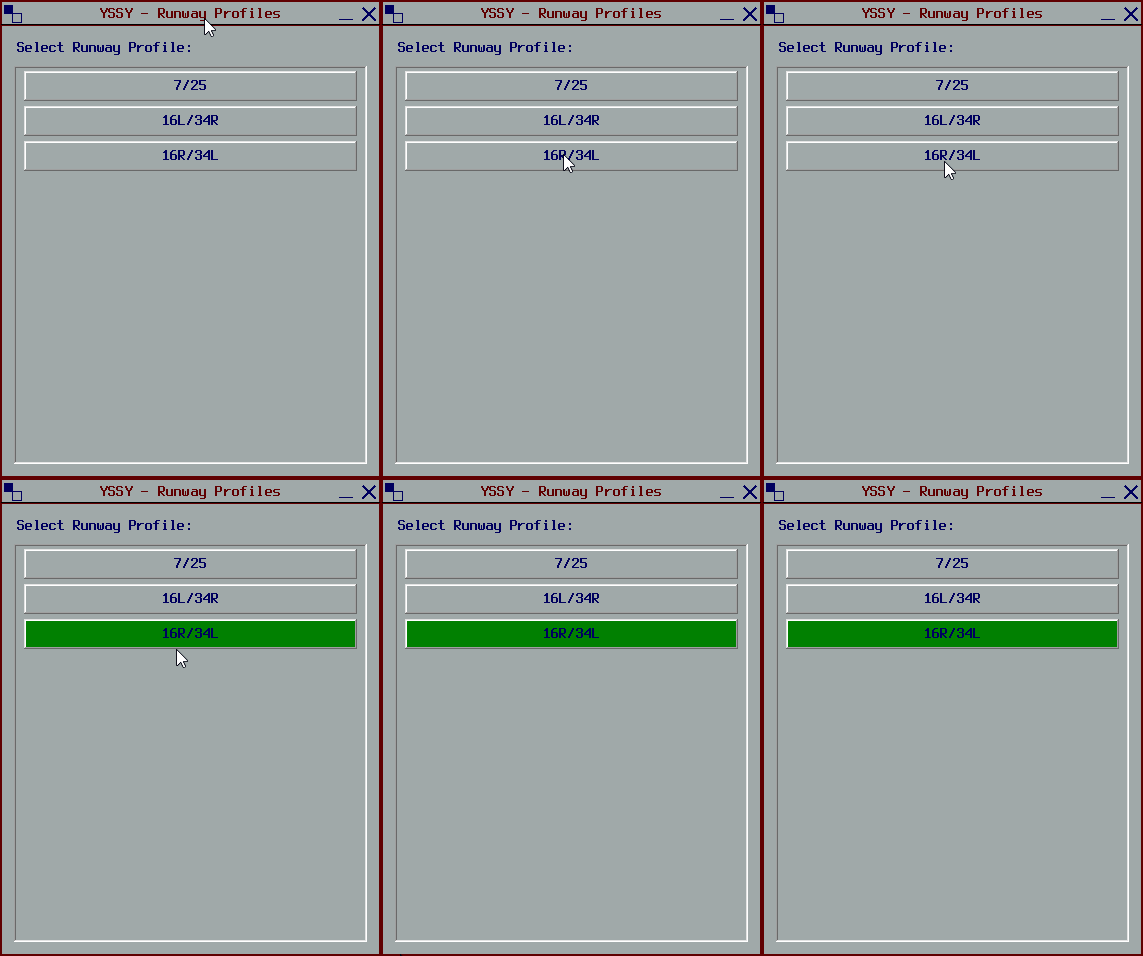
 Choose which runway profiles you want to manage by selecting them in the window:
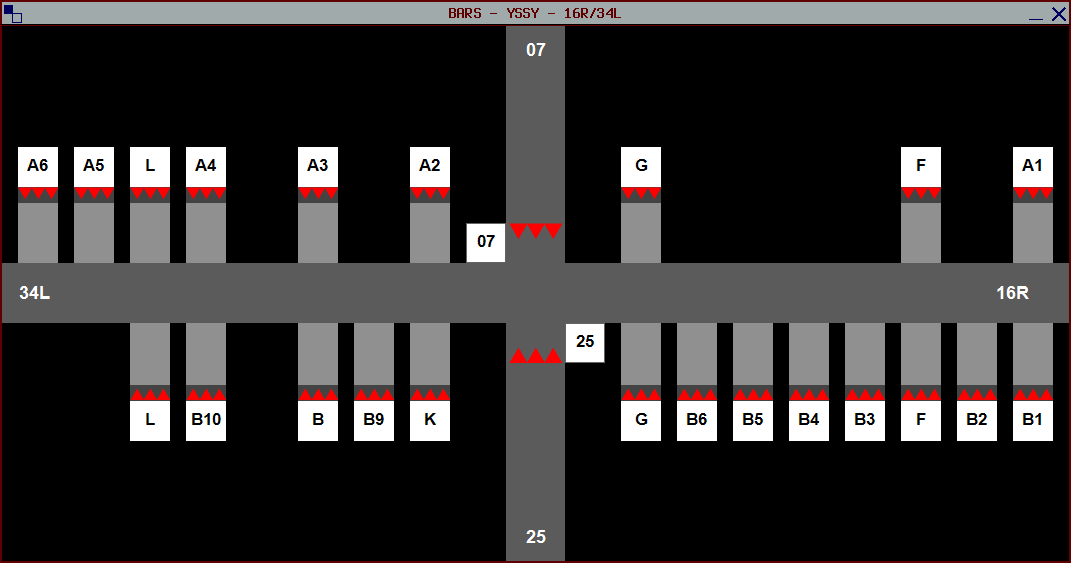
 Once you've selected your desired runways, each runway will get its own dedicated lighting management window. You can now control lighting for each runway independently.
 ## Next Steps
You've now completed the installation and configuration of the plugin. Before you start controlling with BARS, we recommend learning about the different profile types and how they work.
Learn about airport profile types and how to effectively use the plugin for each type.
## Next Steps
You've now completed the installation and configuration of the plugin. Before you start controlling with BARS, we recommend learning about the different profile types and how they work.
Learn about airport profile types and how to effectively use the plugin for each type.