
1
Enter your API Token
After installing the plugin, the first step is to add your API token from the account page. This authenticates your requests and is required before you can proceed to any other configuration.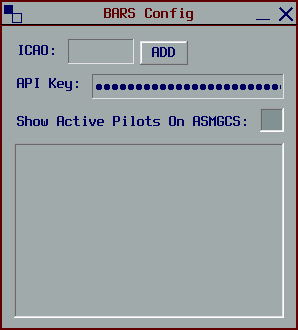
Keep this token secret, never share it with anyone. It is used to authenticate API requests.
2
Add Airport ICAO
Once your API token is saved, you can add airports to manage. Enter the airport’s ICAO code in the input field and click Add.
3
Configure Based on Profile Type
When you click Add, the appropriate window will automatically open based off your added airport’s profile type.
INTAS Airports
After clicking Add, the airport lighting window opens immediately, ready for you to manage lighting configurations. No additional setup is required.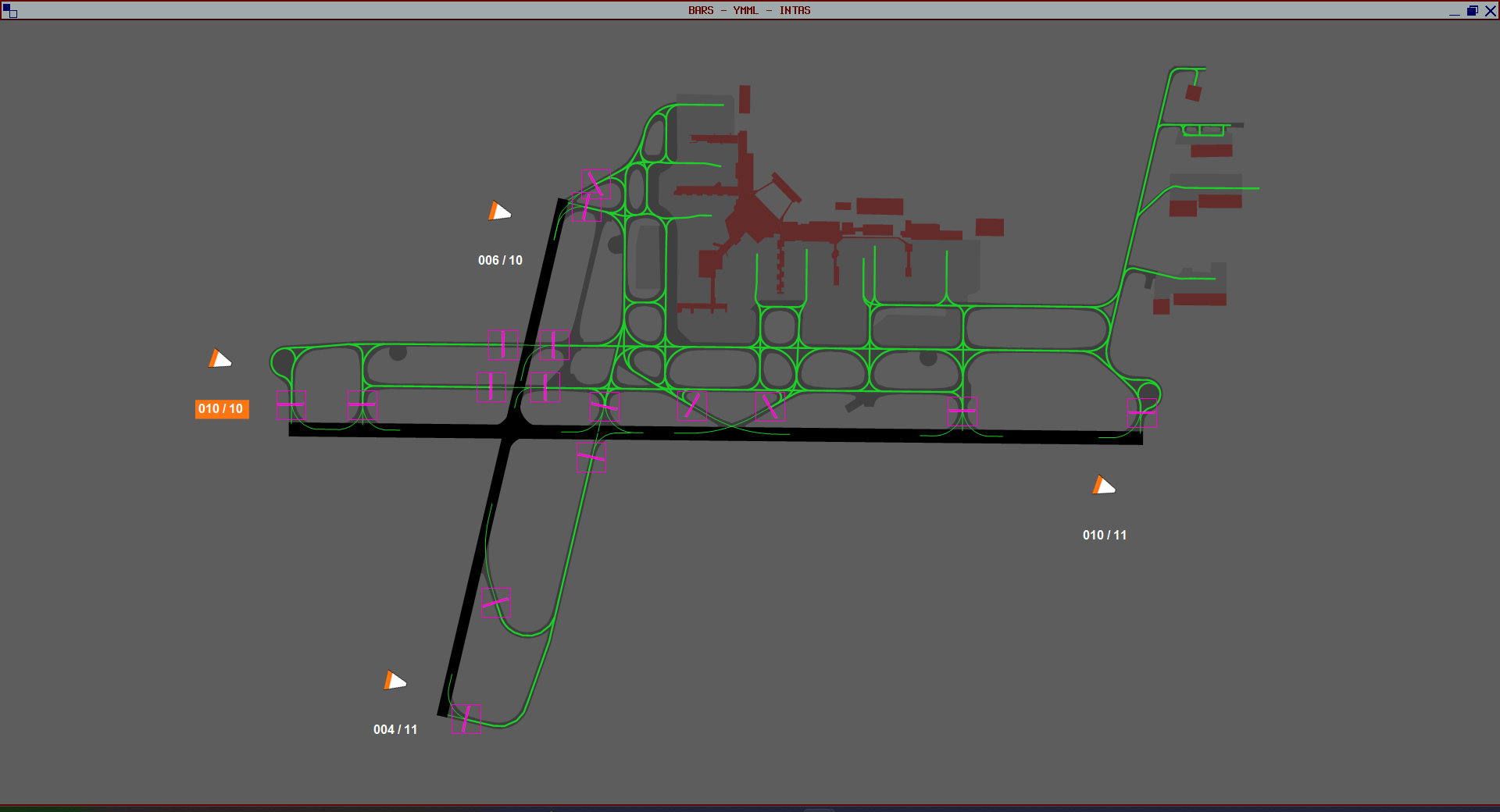
Legacy Airports
Legacy airports require a runway selection process before you can begin managing lighting.1
Add Your Airport
Enter the airport ICAO code and click Add: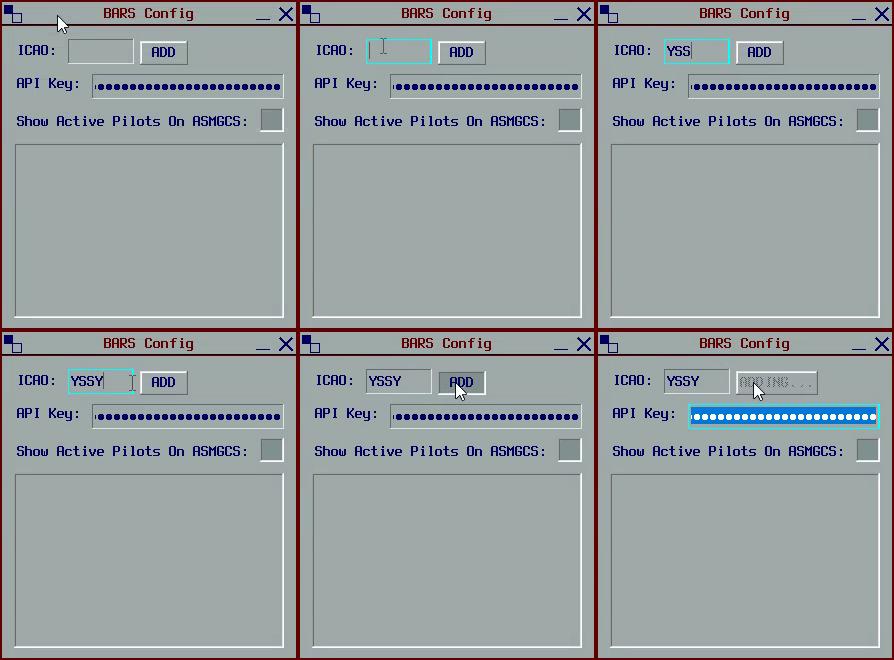
2
Runway Profiles Window Opens
The Runway Profiles window will automatically open for your added airport: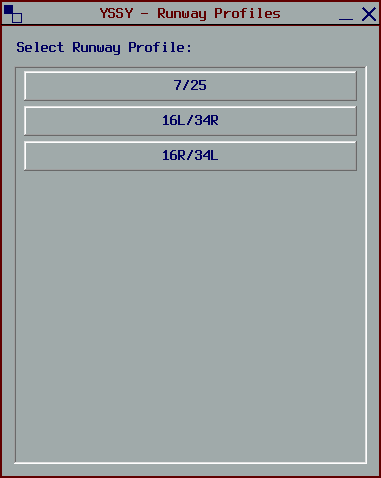
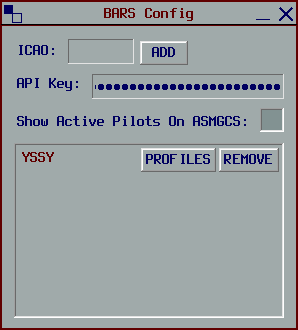
3
Select Your Runways
Choose which runway profiles you want to manage by selecting them in the window: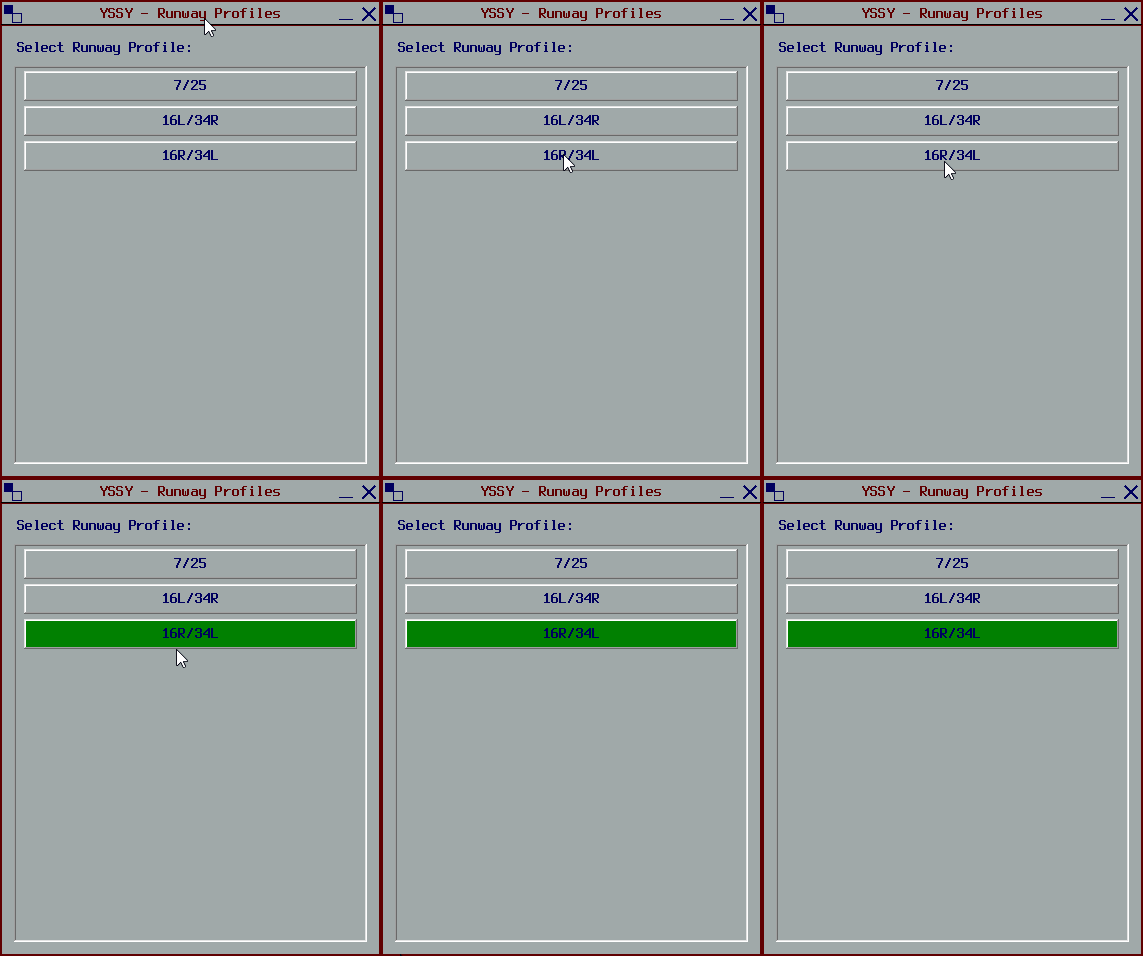
4
Dedicated Runway Windows
Once you’ve selected your desired runways, each runway will get its own dedicated lighting management window. You can now control lighting for each runway independently.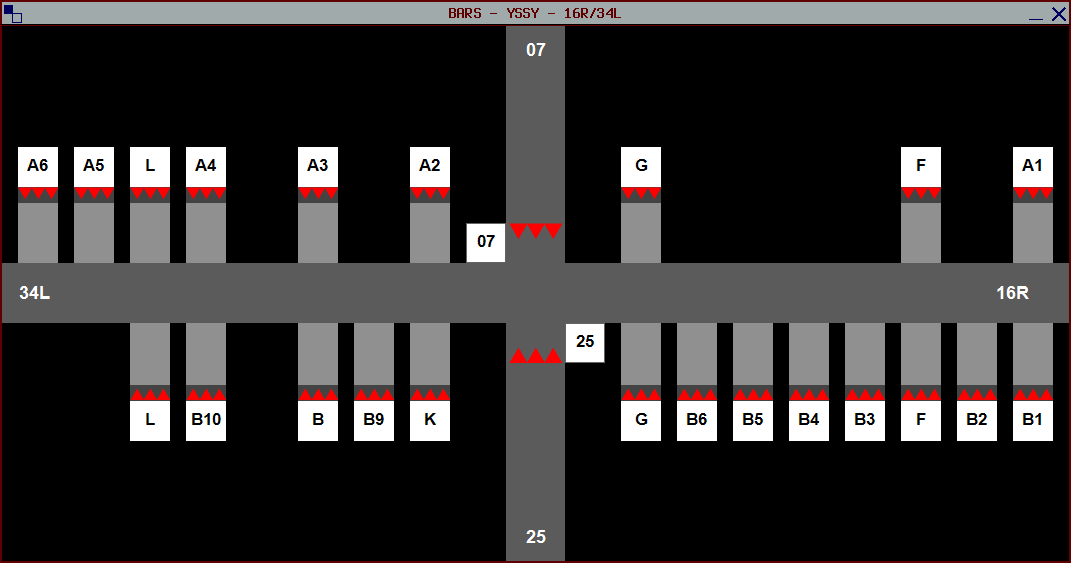
Show Active Pilots On ASMGCS
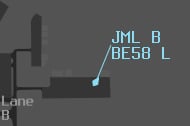
This option is disabled by default. Enable it in the Config window with the Show Active Pilots On ASMGCS checkbox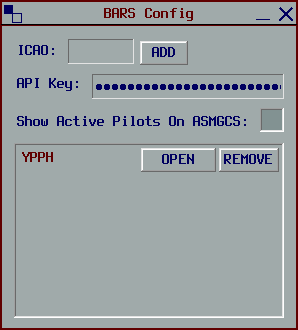
Next Steps
You’ve now completed the installation and configuration of the plugin. Before you start controlling with BARS, we recommend learning about the different profile types and how they work.Profile Types
Learn about airport profile types and how to effectively use the plugin for each type.