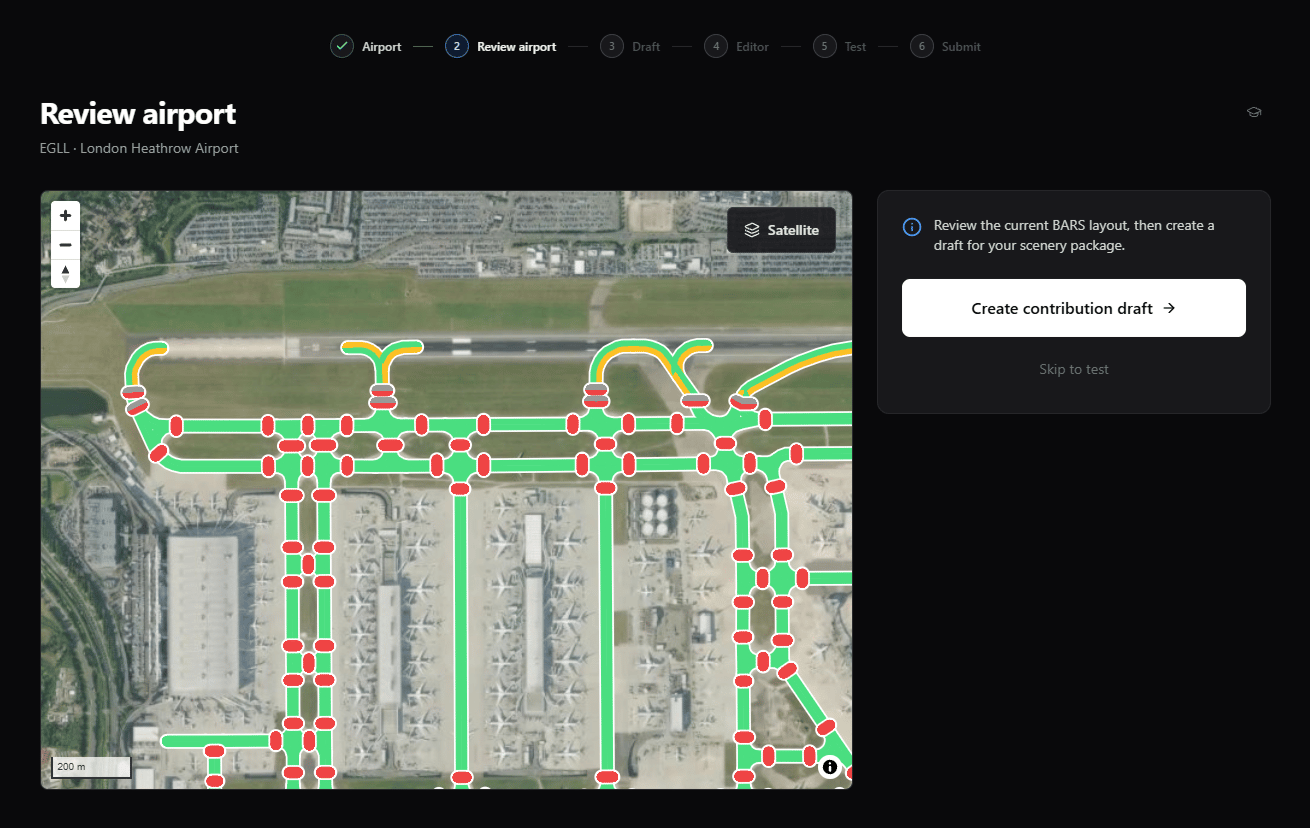
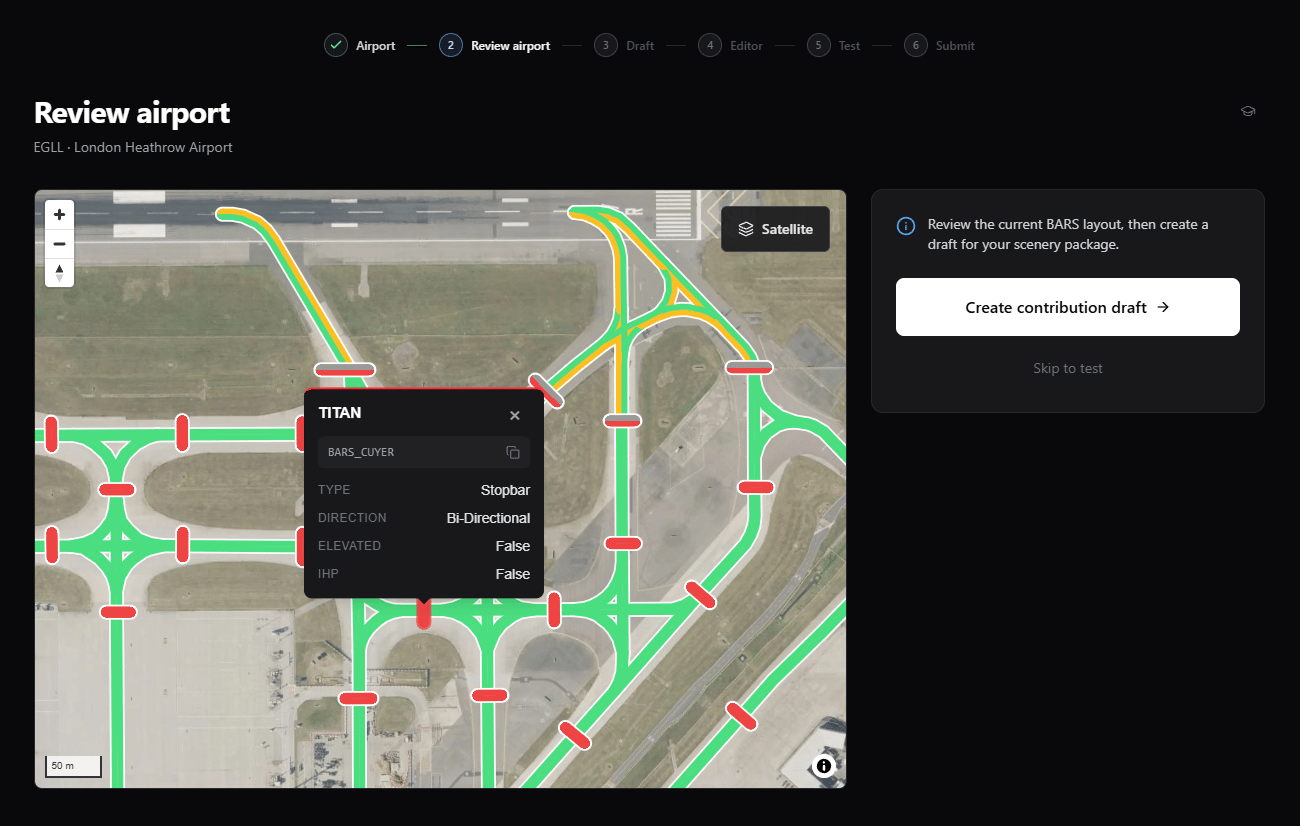
This page covers how to use the Contribution Map, understand BARS IDs, map lighting polygons in your simulator, and add remove areas.

Airport Map

After selecting your airport on the Contribution Dashboard, you are taken to the interactive airport map. This map displays all airport lighting data provided by the division, including stopbars, lead-on lights, and other lighting objects. Navigate the map by panning and zooming to locate the lighting objects you want to map. Click on any lighting object (stopbars, lead-on lights, etc.) to view its metadata and its BARS ID.

Understanding BARS IDs

Every lighting object on the airport map has a unique BARS ID. This ID tells the system what type of light it is, its position, metadata, and configuration. When you create polygons in your simulator scenery, you name each polygon after the corresponding BARS ID from the map.
You must assign the correct BARS ID to each polygon. An incorrect BARS ID will cause the wrong lighting behaviour, configuration mismatches, or errors during review.

Draft Contribution Generator

If the airport has lighting data from the division, you can generate a draft contribution XML directly from the Draft Contribution Generator. Click the generator button to be taken to the draft contribution page, where a draft XML is generated based on existing airport lighting data. This draft provides a starting point that speeds up the mapping process. You will still need to adjust and fine-tune polygon positions in your scenery for best results.
The generated XML is a draft only. Do not submit it without fine-tuning, adjusting, and verifying polygon positions for your specific scenery. Polygon positions must be accurate to your scenery package before submission. Draft XMLs submitted for review without adjustment will be rejected.

Creating Scenery Polygons

With the airport map open and BARS IDs available, you are ready to map polygons in your simulator. The process involves creating a polygon for each lighting object and naming it with the corresponding BARS ID.
1

Identify the lighting object on the map

Click on a lighting object (stopbar, lead-on light, etc.) on the airport map to view its BARS ID. Copy the BARS ID for use in the simulator.
2

Create a polygon in the simulator

In your simulator with developer mode active, create a scenery polygon at the position of the lighting object.
Detailed instructions for creating polygons in MSFS developer mode — including holding Control, clicking to place vertices, and double-clicking to complete a polygon — will be added in a future update.
3

Name the polygon with the BARS ID

Set the polygon’s name to the exact BARS ID copied from the contribution map. This links the polygon to the correct lighting object and its metadata.
4

Repeat for all lighting objects

Continue mapping polygons for each lighting object at the airport, naming each one with the correct BARS ID from the map.
As a contributor, you do not need to configure any lighting metadata. All lighting type, behaviour, and configuration data is already handled by the division. Your only task is to accurately position and name polygons.

Remove Areas

Remove areas prevent duplicate lighting between the simulator’s default baked-in scenery lights and BARS controlled lights. Without remove areas, pilots would see conflicting duplicate lights, which is especially confusing when using features such as Follow The Greens at large airports.

Why Remove Areas Are Required

Without remove areas in your contribution, pilots would encounter:
  • Duplicate lights at BARS supported airports
  • Conflicting lighting from both the default scenery and BARS lights
  • Difficulty identifying which lights are controlled by BARS
  • Unrealistic lighting effects and incorrect light positions

Adding Remove Areas

Remove areas are polygons that tell the system to remove default simulator scenery lights within a defined area. Add remove areas wherever BARS lighting will replace existing default scenery lights.
Detailed instructions for creating remove area polygons within your contribution will be added in a future update. The process follows a similar flow to mapping lighting polygons.

Next Steps

Once you have mapped all lighting polygons with the correct BARS IDs and added remove areas, you’re ready to move onto the next step, exporting and testing your contribution.

Testing Your Contribution

Export your scenery XML and preview your contribution before submission.