
What is division management?
The BARS division management system gives your division control over the airport lighting data for airports within your jurisdiction. Your nominated staff define and manage the lighting data, and whether an airport is ready for scenery contributions. One system keeps airport data accurate and consistent. Scenery contributors refer to the same lighting objects instead of maintaining conflicting definitions for each simulator or scenery package.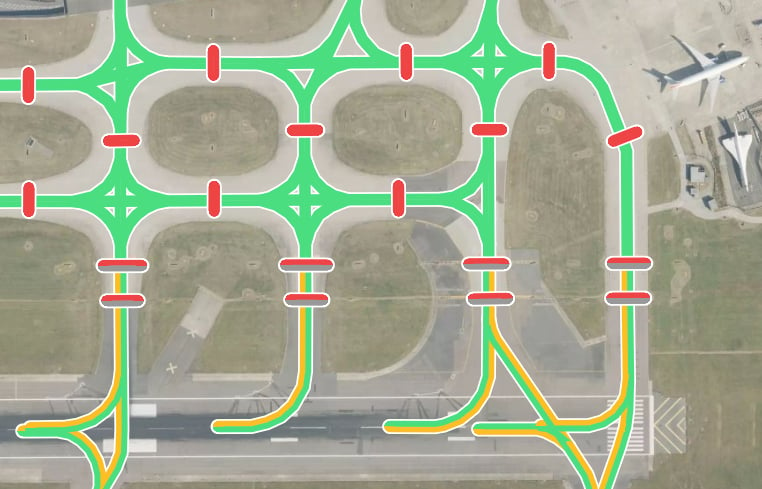
What your division manages
- Staff access through the Nav Head and Nav Member roles.
- Requests to manage airports within your jurisdiction.
- Airport lighting locations, names, types, and lighting properties.
- Whether each approved airport accepts scenery contributions.
What is a BARS ID?
BARS assigns a unique identifier to each new lighting object when it is created on the server. A BARS ID starts withBARS_ followed by a unique string of letters and numbers.
How contributors use your data
Contributors start by reviewing your division’s airport lighting data and its BARS IDs. They generate or draw scenery-specific versions of those objects, adjust their placement, test them in the simulator, and submit them to BARS for review. One airport can have several contributions, each for a different scenery package or simulator. They all refer back to your shared lighting objects. This expands scenery support while your division retains control of the airport’s operational lighting definitions.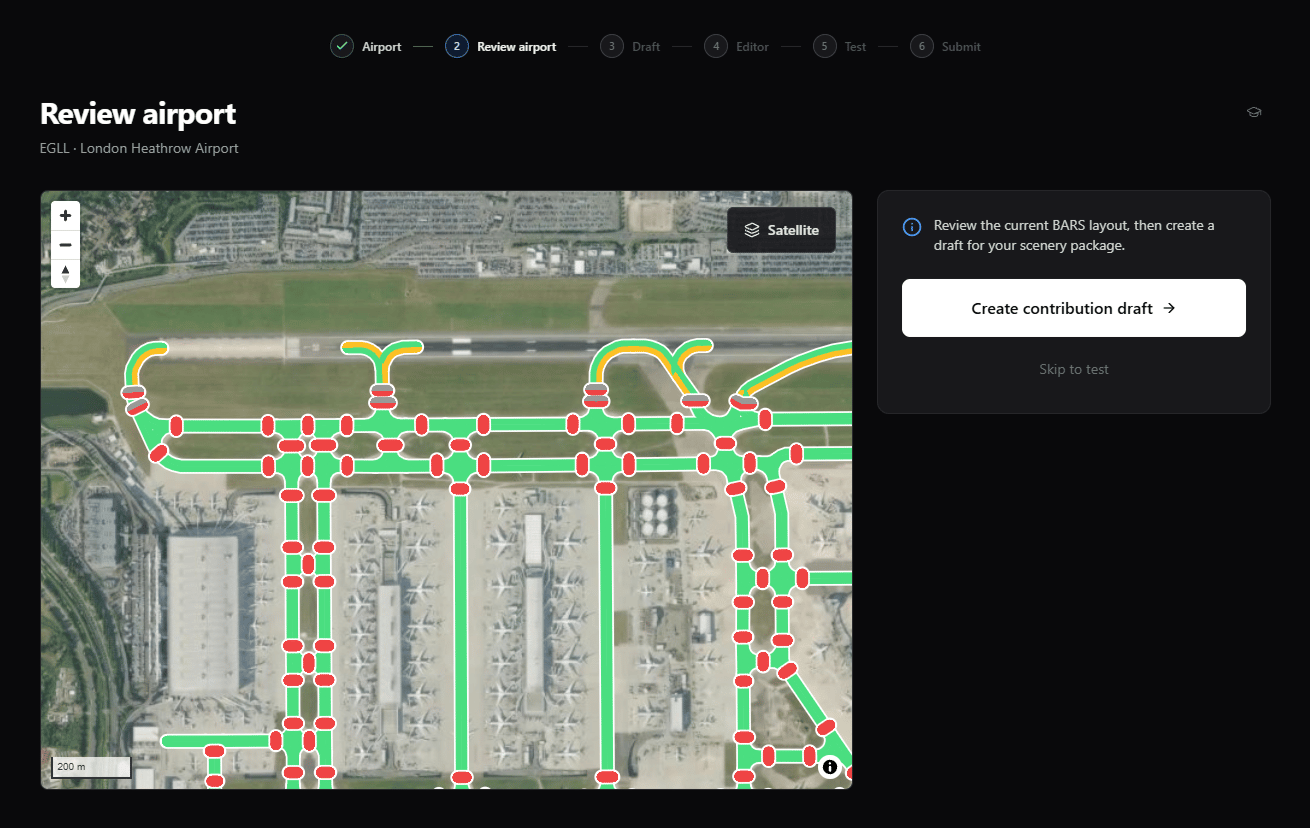
Start with your division
1
Set up your division
Contact BARS from your division email address and nominate the first Nav Head.
2
Add staff and request airports
Manage access and wait for airport approval before adding lighting data.
3
Prepare the airport data
Define airport lighting objects and their properties, using the appropriate editor.
4
Open scenery contributions
Once the complete airport lighting data has been checked and saved, enable contributions so contributors can add scenery support.
Next Steps
Setup
Register your division with BARS and get access for your team.