
Staff permissions
Add a staff member
As a Nav Head, select Add Member, enter the person’s VATSIM CID, choose Nav Head or Nav Member, and save. If the person has logged in to the BARS website before, their name appears as their public display name. If they have not logged in yet, only their CID appears.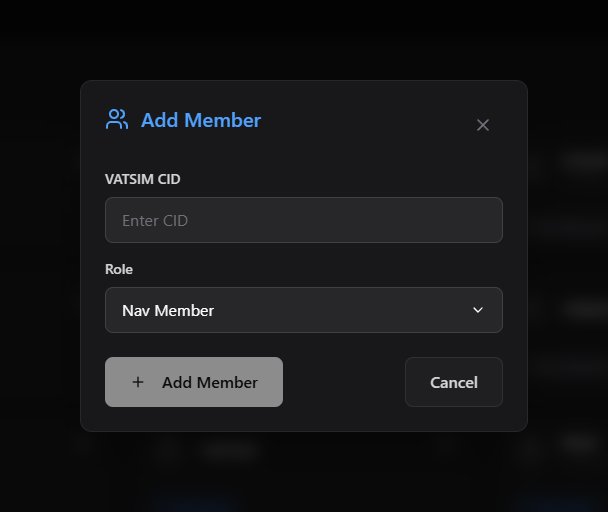
Remove a staff member
As a Nav Head, use the remove button beside a Nav Member and confirm the removal.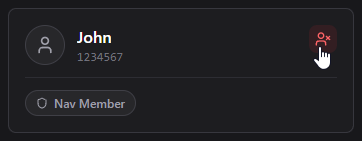
Request an airport
You must request an airport and receive approval before adding its lighting data. Request only airports within your division’s jurisdiction.1
Submit the ICAO code
Select Request Airport, enter the airport’s four-character ICAO code, and submit the request.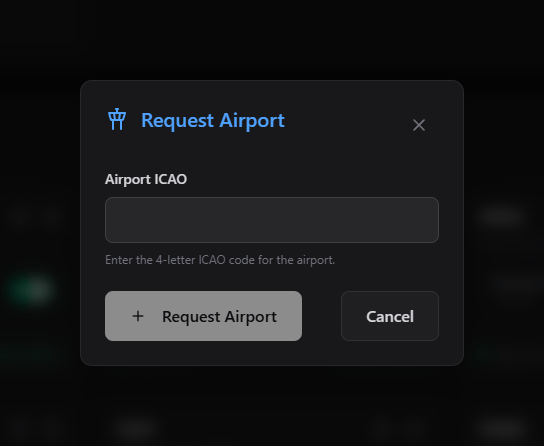
2
Wait for BARS review
The airport appears in your division’s list with its request status.
3
Open the approved airport
Once its status is Approved, you can begin adding lighting data.
Control scenery contributions
Each approved airport has a scenery contributions switch. Both Nav Heads and Nav Members can change it. Keep contributions disabled while preparing the airport data. The website requires you to add objects before enabling the switch, but the presence of objects alone does not mean the airport is complete. Before enabling contributions, check that all intended airport lighting data is present, and your changes have uploaded successfully. Then enable the switch to enable contributions. Disabling contributions prevents contributors from continuing the contribution workflow for that airport.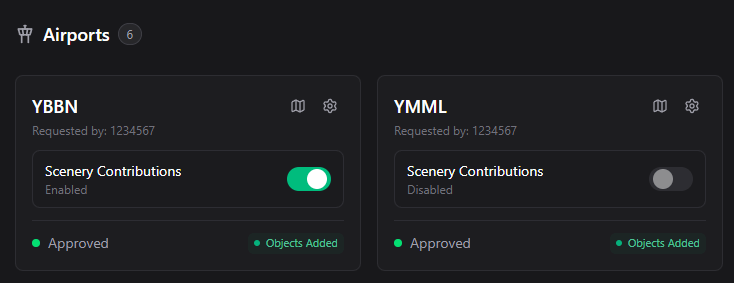
Next Steps
Website Editor
Add and edit your airport lighting data in the website editor.