
Prerequisites:Before you begin, you must have the following:
- BARS Account & API Token
- BARS Installer
- Microsoft Flight Simulator 2020 or 2024
1
Install the client with BARS Installer
Launch the BARS Installer, choose and install the Pilot Client.
2
Open the Pilot Client
After installation, click Open in the installer to launch the Pilot Client for the first time.
3
Enter your API token
Open the Pilot Client and paste your API token from the account page and click Save.
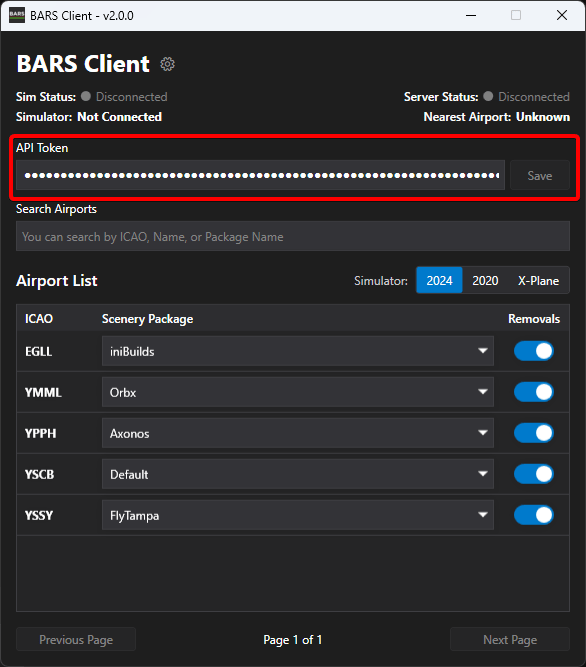
Keep this token secret, never share it with anyone. It is used to authenticate API requests.
Default Light Removal Package
Understanding the Default Light Removal Package
The BARS Pilot Client includes a default light removal package that is installed by default. This package automatically removes defaultbaked scenery lights at all BARS supported airports to prevent duplicate lighting after BARS spawns its own dynamic lights.Why This Package is Important
Without the default light removal package, you would see:- Duplicate lights at BARS supported airports
- Conflicting lighting from both scenery and BARS lights
- Confusion when identifying which lights are controlled by BARS
- Unrealistic lighting effects and positions
We strongly recommend keeping the default light removal package installed. Disabling it will result in duplicate, conflicting lights at BARS supported airports and negatively impact your visual experience. Only disable this package if you have a specific technical reason to do so.
Disabling the Default Light Removal Package (Not Recommended)
While we do not recommend it, if you still wish to disable the default light removal package, you can skip installing it during installation:1
Open the BARS Installer
Launch the BARS Installer application.
2
Navigate to Settings
Go to the Settings page.
3
Enable skip option
Check the “Skip default scenery removal addon installation” option.
4
Reinstall the Pilot Client
Reinstall the Pilot Client to apply this change.
