
Debug Mode
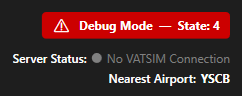
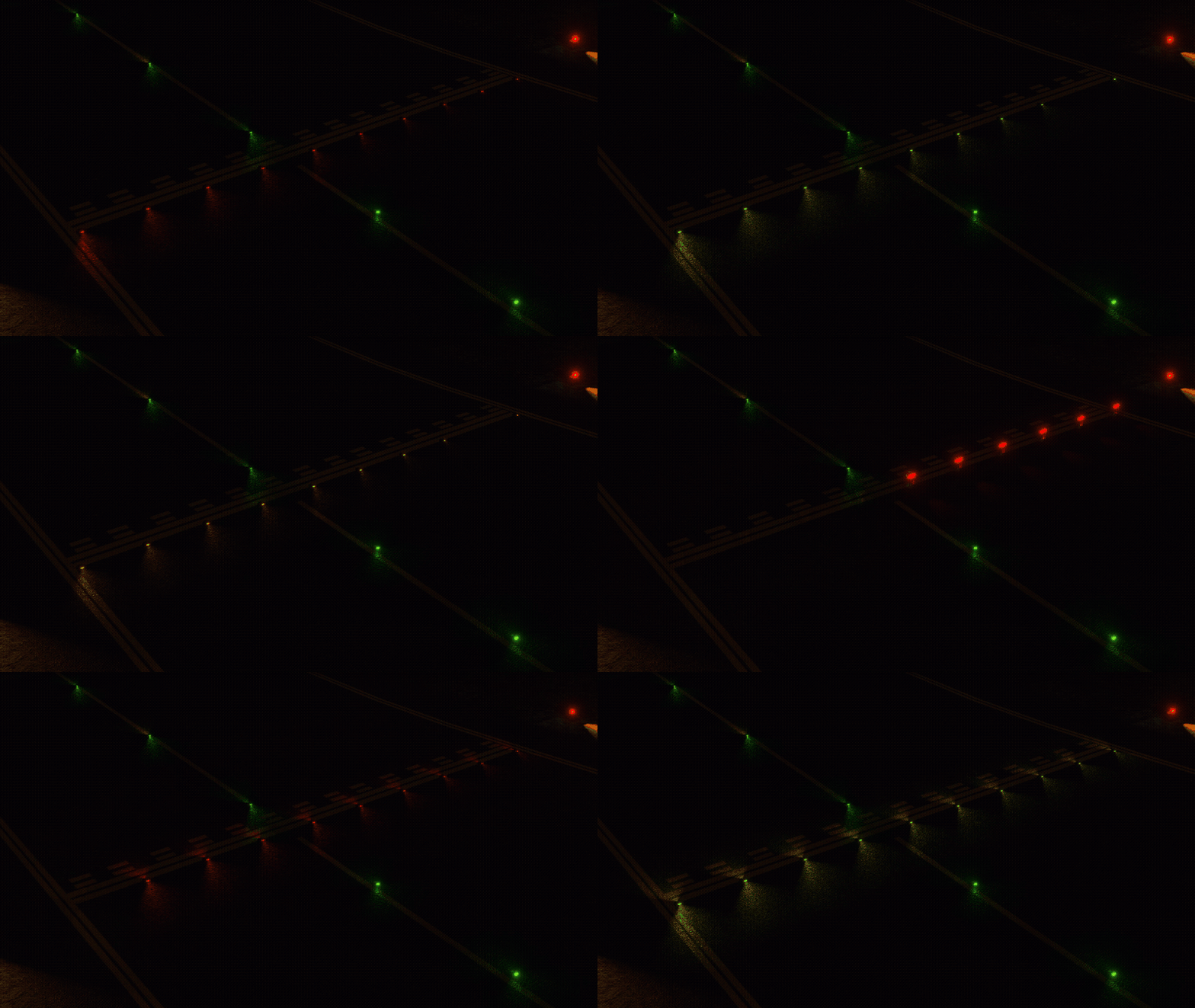
The Pilot Client includes a Debug Mode feature that allows you to verify your light models and states are working correctly without needing to connect. When activated, Debug Mode freezes the current state and automatically cycles through all possible light states at the nearest holding point. This helps you confirm that:- All light models have been successfully installed
- Lights are displaying and functioning correctly in your simulator
Activating Debug Mode
To use Debug Mode, pressCtrl + Shift + D while the Pilot Client window is selected. To disable Debug Mode, simply press the same keybind again.
Before using Debug Mode, ensure that:
- You are spawned at an airport supported by BARS
- Light models have fully loaded (wait a few seconds after spawning)
Testing Mode
The Pilot Client includes a Testing Mode feature that allows you to load and preview your contribution XML directly in your simulator before submitting it. This lets you verify the positions of your lights in sim. When Testing Mode is active, the Pilot Client disconnects from the network and loads your contribution data locally, setting all light states to true so every light in your submission is visible at once.Using Testing Mode
Testing Mode is initiated from the Test page of the Contribution flow, not from the Pilot Client.1
Upload your XML
Navigate to the Test page of the Contribution flow, upload your XML file, and click the Test XML button. Once your XML has been processed, a Test in Client button will appear.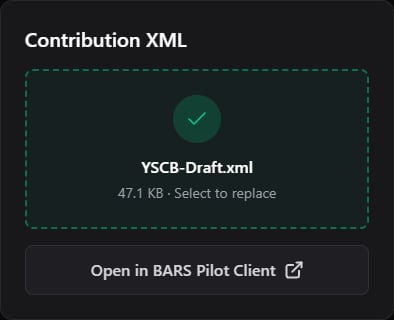
2
Open in the Pilot Client
Click the Test in Client button to open your contribution in the Pilot Client’s Testing Mode.If this is your first time, your browser may prompt you to allow the website to open the BARS Client, click Open BARS Client to proceed. It is recommended you select the option to always allow this, so you are not prompted again in future testing sessions.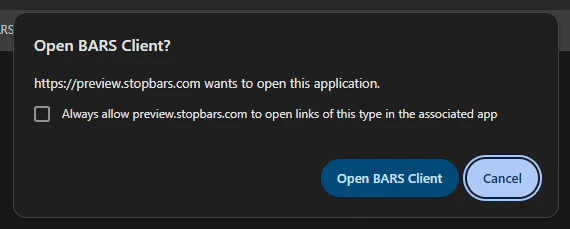
3
Verify Testing Mode is active
Once the Pilot Client opens, it will display a Testing Mode indicator in the top-right corner confirming Testing Mode is active with your contribution loaded.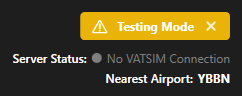
4
Check your lights in the simulator
With Testing Mode active, your contribution XML is loaded locally into your simulator. All light states are set to true, so every mapped light in your submission will be visible simultaneously, allowing you to verify their positions.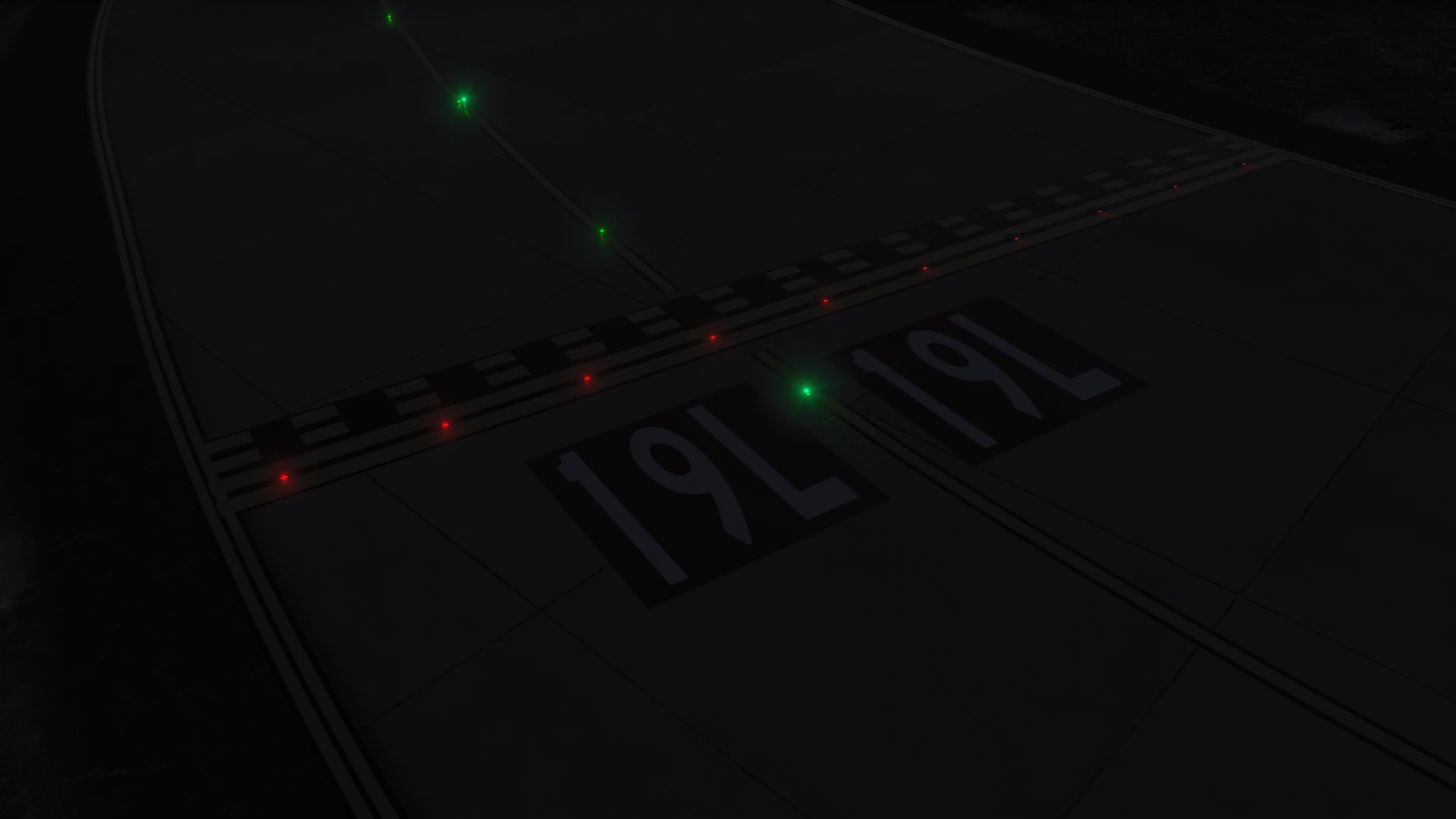
Your aircraft must be in close proximity to the lights for them to load in your simulator. Lights only load near your aircraft to keep simulator performance smooth, this prevents your simulator from loading in airport lights across the entire airport at once.
5
Exit Testing Mode
When you are done, click the X icon on the Testing Mode button in the Pilot Client UI to exit Testing Mode. This will stop the test session and return the client to normal network operations.
Testing Mode only works if your simulator is already open and you are loaded into the airport you wish to test. If you trigger Testing Mode before your simulator is open or before you have spawned at the correct airport, the lights will not load. You must exit Testing Mode first, then open your simulator, spawn at the correct airport, and trigger Testing Mode again from the website.
What Testing Mode Does
When Testing Mode is active:- The Pilot Client disconnects from the network
- Your contribution XML is loaded locally into the simulator
- All light states are set to true, making every mapped light visible simultaneously
- A Testing Mode indicator will display in the Pilot Client confirming Testing Mode is active
Testing Mode only affects your local simulator session. No contribution is submitted or published by activating Testing Mode, it is purely for local in simulator testing before you submit your contribution.